


If you are running a WordPress website, few things are more frustrating than a vague error message that stops you from working. You might be updating a plugin or checking site health when you hit a wall, needing an immediate cURL error 28 WordPress fix.
Unlike a standard “404 not found” error, the message “cURL error 28: Connection timed out” sounds highly technical. It mentions “microseconds” and “bytes,” which can be intimidating.
However, this is one of the most common connectivity issues in the WordPress ecosystem. It doesn’t mean your website is destroyed; it simply means your server is struggling to communicate with the outside world.
🚀 Need this fixed urgently? If you don’t want to mess with code or server settings, we can handle this for you. Click here to order our Instant Fix Service and we will resolve your cURL Error 28 within an hour!
In this comprehensive guide, we will explain exactly what cURL is and provide you with a detailed, step-by-step cURL error 28 WordPress fix.
What is cURL in WordPress?
To understand the error, you first need to understand the tool. cURL (Client URL) is a command-line tool and library that WordPress uses to send and receive data via URLs.
Think of cURL as a courier for your website. When your WordPress site needs to do something that involves another server—like checking if a plugin has a new update, processing a PayPal payment, or syncing with an email marketing tool—it sends the “cURL courier” out to fetch that data.
What Does “Error 28” Mean?
Every request has a time limit. To prevent your server from freezing up while waiting for a response, WordPress sets a timeout duration. Error 28 is simply a timeout code.
It means:
-
WordPress sent a request to another server.
-
The request was sent successfully.
-
However, the response took too long to come back.
-
After the time limit expired, your server cut the connection.
Why You Need a cURL Error 28 WordPress Fix
Before we start applying fixes, it is helpful to identify the root cause. This error is rarely caused by WordPress core files; it is almost always an environment or configuration issue.
-
Server Firewall Blocks: Your hosting server’s security firewall (or a plugin like Wordfence) might flag the outgoing API request as suspicious and block it.
-
Insufficient PHP Memory: If your server has a low memory limit (common on cheap shared hosting), it may not have enough resources to process the request.
-
DNS Resolution Issues: Your server works like a computer; it uses DNS to look up IP addresses. If the DNS is misconfigured, your server cannot “find” the external website.
-
Outdated cURL Library: Your web hosting provider might be running an old version of PHP or cURL.
6 Steps for a cURL Error 28 WordPress Fix
We will start with the easiest, non-technical solutions and move to advanced server configurations.
Method 1: Check WordPress Site Health
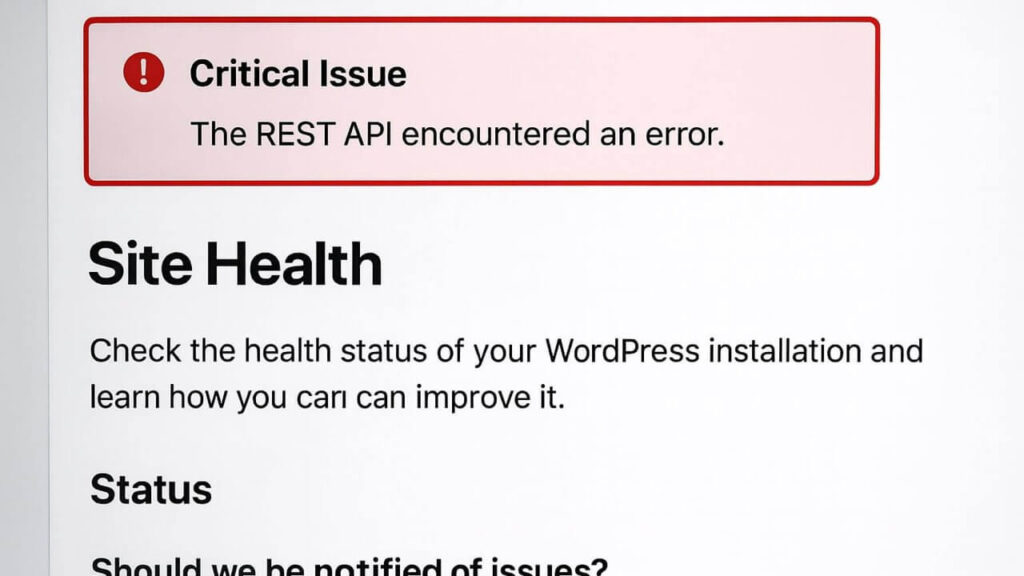
Since WordPress 5.2, there is a built-in debugging tool that can confirm if the error is active.
-
Log in to your WordPress Dashboard.
-
Navigate to Tools > Site Health.
-
Click on the Status tab.
Look for a section labeled “Critical Issues.” If you see an error that says “The REST API encountered an error” or “Your site could not complete a loopback request,” expand that section. If the details mention “cURL error 28,” you have confirmed the issue is currently affecting your site.
Method 2: Firewall Check for cURL Error 28 WordPress Fix
The most common cause for a cURL error 28 WordPress fix involves security plugins. Modern security plugins (like Wordfence, iThemes, or Sucuri) are designed to block suspicious traffic. However, they sometimes generate “false positives.”
How to test if your firewall is the culprit:
-
Go to Plugins > Installed Plugins.
-
Locate your security plugin.
-
Click Deactivate.
-
Return to Tools > Site Health and refresh the page.
If the error disappears, you have found the problem. Reactivate the plugin and whitelist the IP addresses you are trying to connect to.
Method 3: Increase Memory for cURL Error 28 Fix
If your site is hosted on a shared server (like basic plans on Bluehost, GoDaddy, or HostGator), your server resources are likely capped.
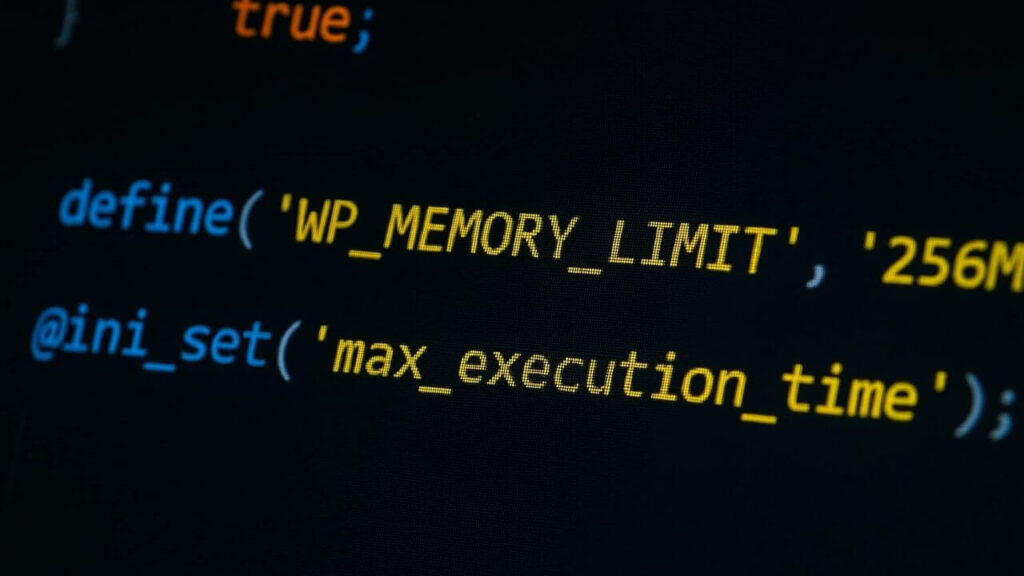
You can manually increase these limits by editing your wp-config.php file. Please back up your site before touching it.
Step-by-Step Guide:
-
Access your files using an FTP client (like FileZilla).
-
Locate
wp-config.phpin the root folder (usuallypublic_html). -
Edit the file.
-
Paste the following lines just before the line that says
/* That's all, stop editing! Happy publishing. */:
define( 'WP_MEMORY_LIMIT', '256M' );
@ini_set( 'max_execution_time', '300' );
This increases memory to 256MB and tells the server to wait 300 seconds (5 minutes) before timing out.
Method 4: Check for Plugin Conflicts
Sometimes, a plugin isn’t blocking the connection—it is hijacking it. To diagnose this, perform a conflict test:
-
Deactivate all plugins except the one showing the error.
-
Check if the cURL error persists in Site Health.
-
If the error is gone, reactivate your plugins one by one.
-
The moment the error returns, the last plugin you activated is the cause.
Method 5: Update Server Software (PHP & cURL)
WordPress keeps evolving. If your hosting environment is running an ancient version of PHP (like PHP 5.6) or an old cURL library, requests will fail.
Requirements for a healthy site:
-
PHP Version: 7.4 or higher (8.1 recommended).
-
cURL Version: 7.58.0 or higher.
You can check your current versions by going to Tools > Site Health > Info > Server. If they are outdated, contact your host.
Method 6: Contact Your Hosting Provider (DNS Issues)
If you have tried all the above steps and still need a cURL error 28 WordPress fix, the issue is likely at the server level (DNS or Firewall).
Copy and paste this request to your hosting support ticket:
“Hello Support, I am seeing a critical ‘cURL error 28: Connection Timed Out’ on my WordPress site. I have checked for plugin conflicts and increased my PHP memory limit. Could you please check if there is a DNS resolution issue on the server? Please also check if ModSecurity or a server-side firewall is blocking outgoing cURL requests to external APIs.”

Conclusion on cURL Error 28 WordPress Fix
The cURL Error 28 is intimidating because it looks like a complex code failure, but it is almost always a resource or configuration hurdle. By systematically eliminating the firewall, memory, and software version issues, you can get your site reconnecting to the world in no time.
Still Facing Issues? If you have tried everything in this guide and your site is still showing errors, don’t waste any more time stressing over code. 👉 Contact Us Here to speak with an expert, or Order our Emergency Fix Service to get it resolved today.









