


Have you ever tried to install a plugin or theme only to see the destination folder already exists error message? This usually happens when you try to update a plugin or reinstall a theme that you thought was deleted.
The error looks scary: “Installation failed…” But don’t worry—it simply means WordPress is confused because a leftover folder from a previous installation is blocking the new one.
🚀 Need this fixed instantly? If you don’t want to touch server files, Click here to order our Quick Fix Service and we will resolve this installation conflict for you within an hour!
In this guide, we will show you 2 simple ways to solve this problem so you can finish your setup.
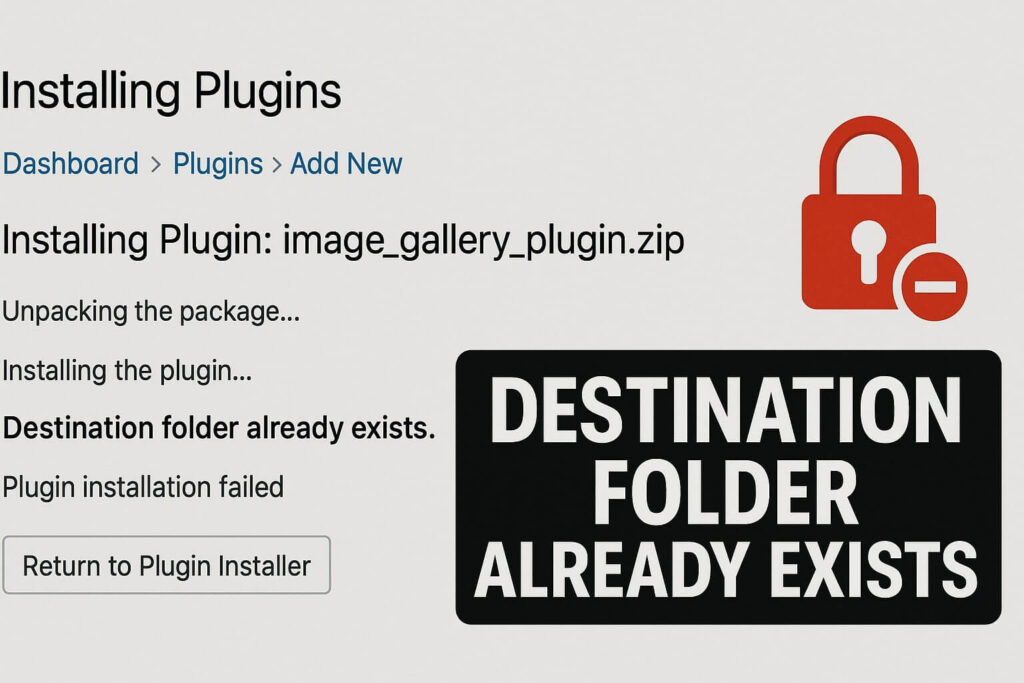
Why the “Destination Folder Already Exists” Error Happens
This specific error occurs when WordPress tries to create a directory for a plugin (e.g., /wp-content/plugins/elementor/), but it finds that a folder with that exact name is already there.
This common conflict happens because:
-
A previous installation failed: A past install was interrupted, leaving an empty or half-full folder behind.
-
Incomplete Deletion: You deleted a plugin, but the server didn’t remove the directory completely.
-
Manual Uploads: You previously uploaded files via FTP and forgot about them.
Method 1: Fix “Destination Folder Already Exists” via Dashboard
In modern versions of WordPress (5.5 and later), fixing this folder conflict is actually built right into the installer.
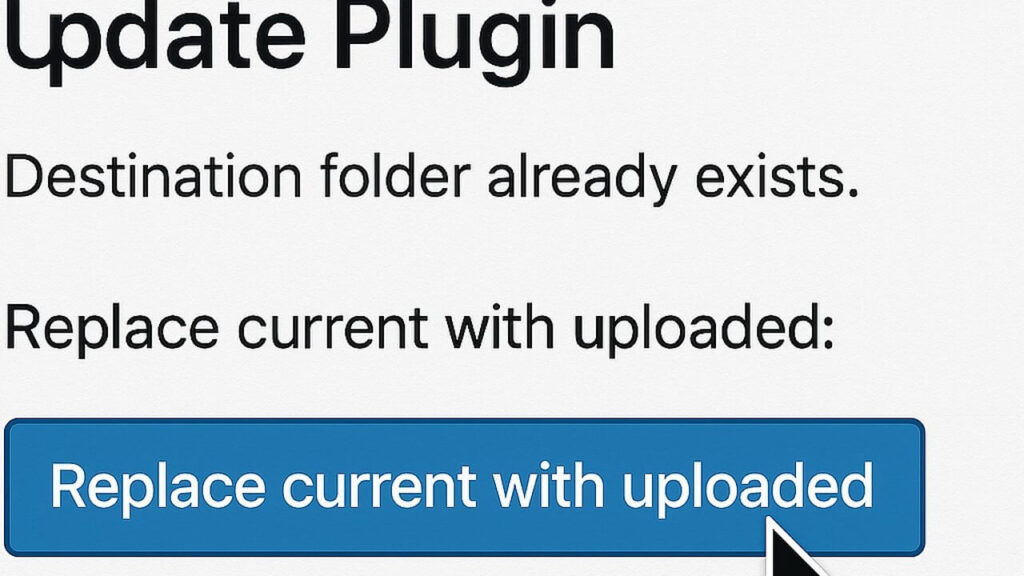
When you see the error screen, do not panic. Look closely at the bottom of the message.
-
WordPress will detect the issue and show a button that says “Replace current with uploaded”.
-
Simply click that button.
-
WordPress will automatically delete the old folder and install the new version for you.
However, if you are on an older version of WordPress, or if the button doesn’t appear, you must use Method 2.
Method 2: Delete the Folder to Fix “Destination Folder Already Exists”
If the automatic button isn’t available, you need to manually remove the blockage causing the installation failure. You can do this using an FTP client like FileZilla or your Hosting File Manager.
Step 1: Connect to Your Site
Open your File Manager or connect via FTP using your hosting credentials.
Step 2: Navigate to the Problem Area
-
If you are installing a plugin, go to:
public_html/wp-content/plugins/ -
If you are installing a theme, go to:
public_html/wp-content/themes/
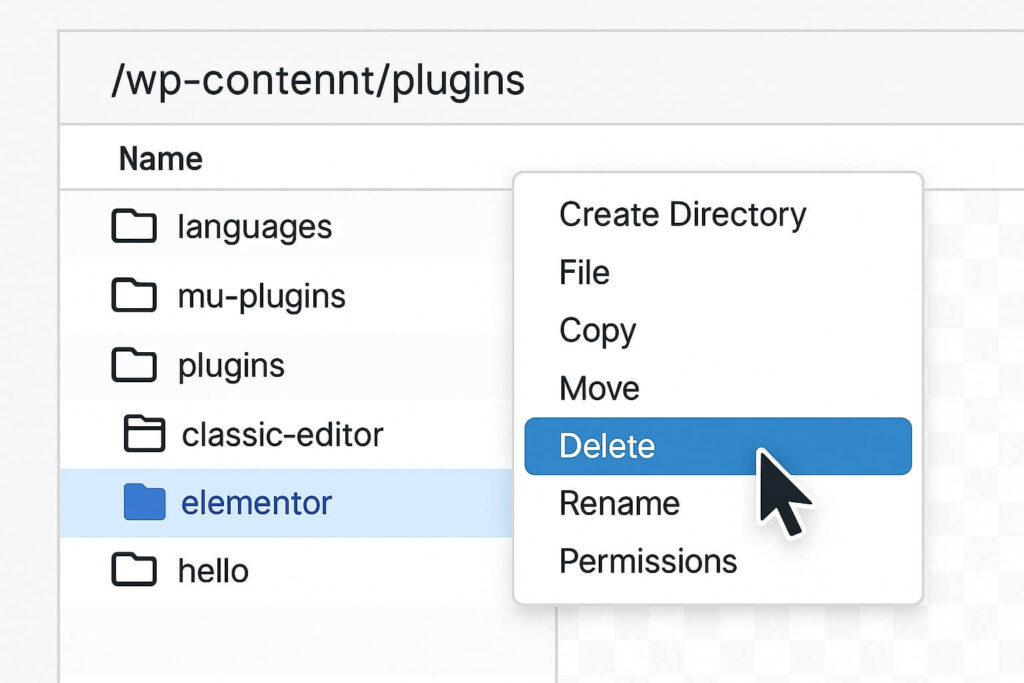
Step 3: Find and Delete the Folder
Look for the directory name mentioned in the error message.
-
Example: If the error was about “Elementor,” look for the folder named
elementor. -
Right-click that folder and select Delete.
Step 4: Retry Installation
Once the folder is gone, go back to your WordPress dashboard. Try installing the plugin again. Since you removed the blockage, the warning message will not appear, and the installation will succeed.
Conclusion on the “Destination Folder Already Exists” Error
This warning is just WordPress trying to protect you from overwriting files accidentally. By using the “Replace with current” button or manually deleting the old folder, you can clear the path for your new plugin in seconds.
Still Facing Issues? If you deleted the folder but the error persists, you might need a deeper server check. 👉 Contact Us Here for a professional consultation, or check out our WordPress Speed Optimization Services to ensure your site runs smoothly after the fix.









