

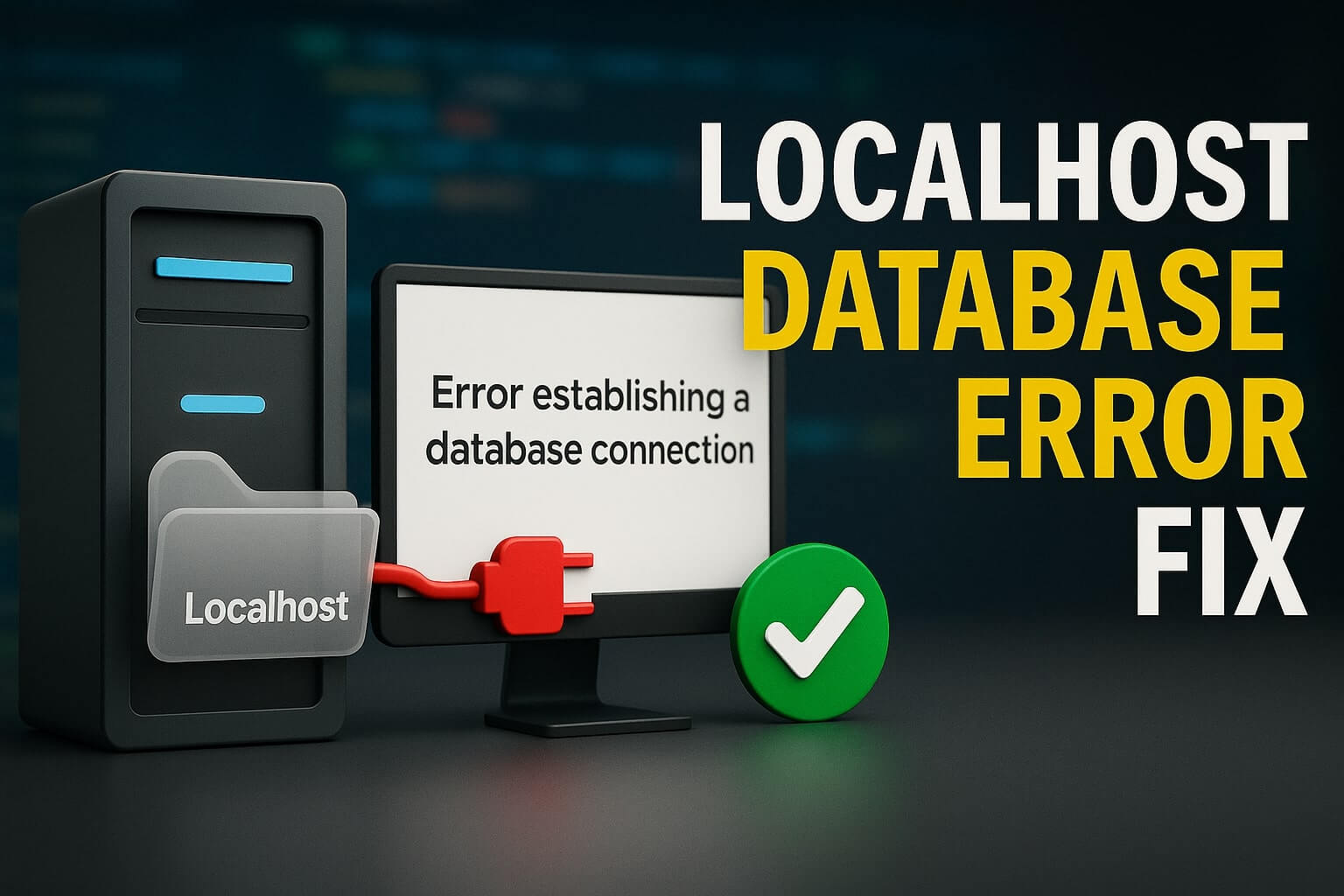
Encountering a localhost database connection error is a rite of passage for every WordPress developer. You just installed XAMPP or WAMP to build a website offline. You extracted the files, created a database, and excitedly typed localhost/mysite into your browser.
However, instead of the setup wizard, you face a blank screen with bold text: “Error establishing a database connection.”
This moment halts your workflow instantly. Unlike a live server where hosting support helps, on localhost, you are the administrator.
The good news involves the simplicity of the fix. This failure rarely means your data is lost. It simply means WordPress cannot find the “door” to your database.
🚀 Need this fixed instantly? If you are struggling with config files, Click here to order our Quick Fix Service. We can resolve this XAMPP issue and get your environment running within one hour.
In this guide, we will break down why this happens and provide 5 proven methods to fix the issue.
Why the Localhost Database Connection Error Happens
To fix the issue, you must understand the relationship between WordPress and XAMPP.
WordPress uses PHP to process code and MySQL to store data. When you run a site locally, XAMPP acts as the server. The localhost database connection error message appears when WordPress tries to talk to MySQL but gets rejected.
Common Causes
On a live server, traffic spikes cause this. However, on localhost, the causes are static configuration mismatches:
-
Incorrect Credentials: The default XAMPP username is “root” with no password.
-
MySQL is Down: You forgot to click “Start” in the XAMPP panel.
-
Port Conflicts: Another program uses Port 3306.
-
Corrupted Tables: Your computer crashed while writing data.
Method 1: Fix Credentials for Localhost Database Connection Error
The most common cause of this connectivity failure is a typo in wp-config.php. XAMPP has specific default settings that differ from live web hosts.
If these settings do not match exactly, you trigger the warning.
Step 1: Open Your Project Folder
Navigate to your XAMPP installation folder (usually C:\xampp\htdocs\your-website).
Step 2: Edit wp-config.php
Find wp-config.php, right-click it, and open it with a text editor.

Step 3: Check Database Details
Verify these four lines.
1. The Database Name:
define( 'DB_NAME', 'test_db' );
Ensure this matches the name in phpMyAdmin.
2. The Database Username:
define( 'DB_USER', 'root' );
On XAMPP, the default user is always root.
3. The Database Password:
define( 'DB_PASSWORD', '' );
This is the tricky part. On XAMPP, the default password is empty. Ensure the quotes have nothing between them. If you see 'password', delete it so it looks like ''.
4. The Database Host:
define( 'DB_HOST', 'localhost' );
Step 4: Save and Refresh
Save the file. Refresh your browser. If the credentials caused the issue, the site will load normally.
Method 2: Start MySQL to Solve Localhost Database Connection Error
Sometimes, the solution requires no coding. You might see the warning simply because the database server is off.
XAMPP stops running when you shut down your computer. You must restart it manually.
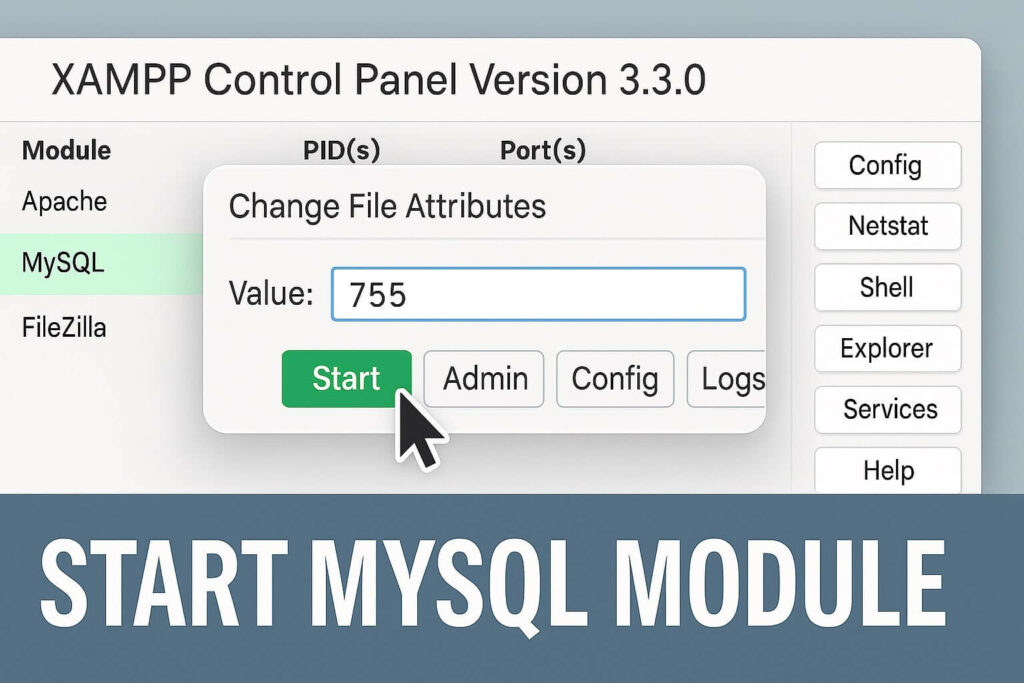
Step 1: Open XAMPP Control Panel
Open the XAMPP application.
Step 2: Check Module Status
Look at the “MySQL” module.
-
Grey: Stopped.
-
Green: Running.
Step 3: Start the Service
Click Start next to MySQL. Wait for the Port numbers to appear.
Step 4: Verify the Fix
Once green, reload your browser. If the server was off, this resolves the connectivity problem immediately.
Method 3: Fix Port Conflicts Causing Localhost Database Connection Error
If MySQL turns green for a second and then shuts down, you have a Port Conflict.
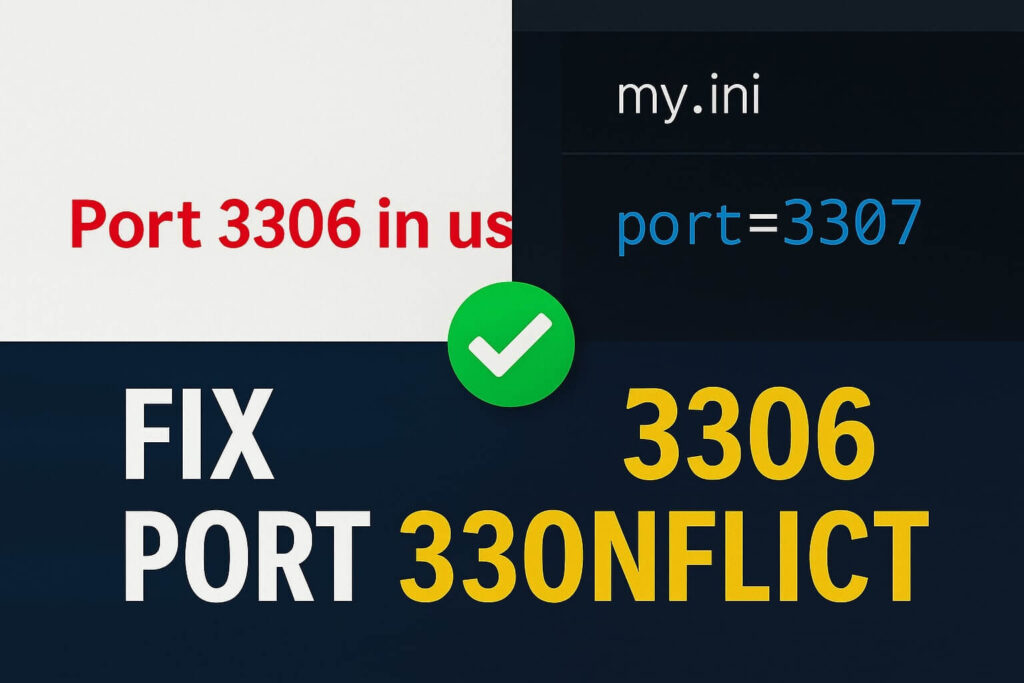
MySQL uses Port 3306. Programs like Skype often claim this port, preventing XAMPP from starting, which leads to the connection failure.
Step 1: Change the XAMPP Port
-
In XAMPP, click Config next to MySQL > my.ini.
-
Press
Ctrl+F, search for3306. -
Change every instance to
3307. -
Save and close.
Step 2: Update wp-config.php
Tell WordPress about the new port:
define( 'DB_HOST', 'localhost:3307' );
Step 3: Restart
Restart MySQL. It should stay green, ensuring the database is accessible.
Method 4: Repair Database to Fix Localhost Database Connection Error
If your server runs but the error persists, your database might be corrupted. WordPress has a built-in repair tool for this scenario.
Step 1: Enable Repair Mode
Add this line to wp-config.php:
define( 'WP_ALLOW_REPAIR', true );
Step 2: Run the Tool
Navigate to: http://localhost/your-site/wp-admin/maint/repair.php
Step 3: Execute Repair
Click “Repair Database”. Once finished, remove the code from your config file to secure the site.
Method 5: Create New User for Localhost Database Connection Error
Sometimes, the “root” user permissions fail. Creating a fresh user can bypass the blockade.
-
Go to
http://localhost/phpmyadmin> User Accounts > Add user account. -
User:
wp_user. -
Host:
Local. -
Privileges: Check “Check all”.
-
Update
wp-config.phpwith the new user credentials.
Conclusion
Building locally is great, but server errors happen. The localhost database connection error is usually a simple configuration mismatch. By checking credentials and ports, you can solve it quickly.
Summary of Fixes:
-
Check Credentials: Ensure password is empty.
-
Start MySQL: Check XAMPP panel.
-
Change Ports: Use 3307.
-
Repair Database: Run the repair script.
Still Stuck? If you still face the XAMPP connection failure, you might have a deeper issue. 👉 Contact Us Here for a professional audit, or Order our Emergency Fix Service today.









