


You are ready to design your page. You open the editor, the main preview area loads fine, but on the left side, you face a frustrating sight: the Elementor widget panel not loading. Instead of your buttons, text boxes, and images, you see a never-ending spinning circle or a completely grayed-out sidebar.
This is a specific variation of the “gray screen of death.” It feels like the editor is almost working, but the tools you need are locked away. You click refresh, you check your internet connection, but the sidebar remains stuck in an infinite loading loop.
🚀 Need this fixed instantly? If you are uncomfortable editing server files or debugging plugins, Click here to order our Quick Fix Service. We will resolve this sidebar freeze and optimize your editor speed within one hour.
In this guide, we will break down the technical reasons why the sidebar gets stuck and provide you with 5 step-by-step methods to get your widgets back immediately.
[Image: elementor-widget-panel-not-loading-gray-screen.jpg]Alt Text: Computer screen showing the Elementor widget panel not loading with a spinning icon.
Why is the Elementor Widget Panel Not Loading?
To fix the issue, you must understand what is happening behind the scenes. The Elementor editor relies on two main components: the preview window (your site) and the editor sidebar (the widget panel).
The sidebar requires significant resources to load all the available widgets from the core plugin, your theme, and third-party add-ons. When you see this loading glitch, it usually means the server “timed out” or crashed while trying to load this heavy list of tools.
Common Triggers for the Sidebar Freeze
-
Low PHP Memory Limit: The #1 cause. Your server lacks the RAM to load the sidebar scripts.
-
Plugin Conflicts: A third-party addon might be outdated or breaking the core code.
-
Loader Method: Elementor’s default data fetching method might be blocked by your server configuration.
-
Corrupted Database: Widget data tables might be incomplete.
We will address these issues systematically, starting with the most effective server-side fixes.
Method 1: Increase Memory to Fix Elementor Widget Panel Not Loading
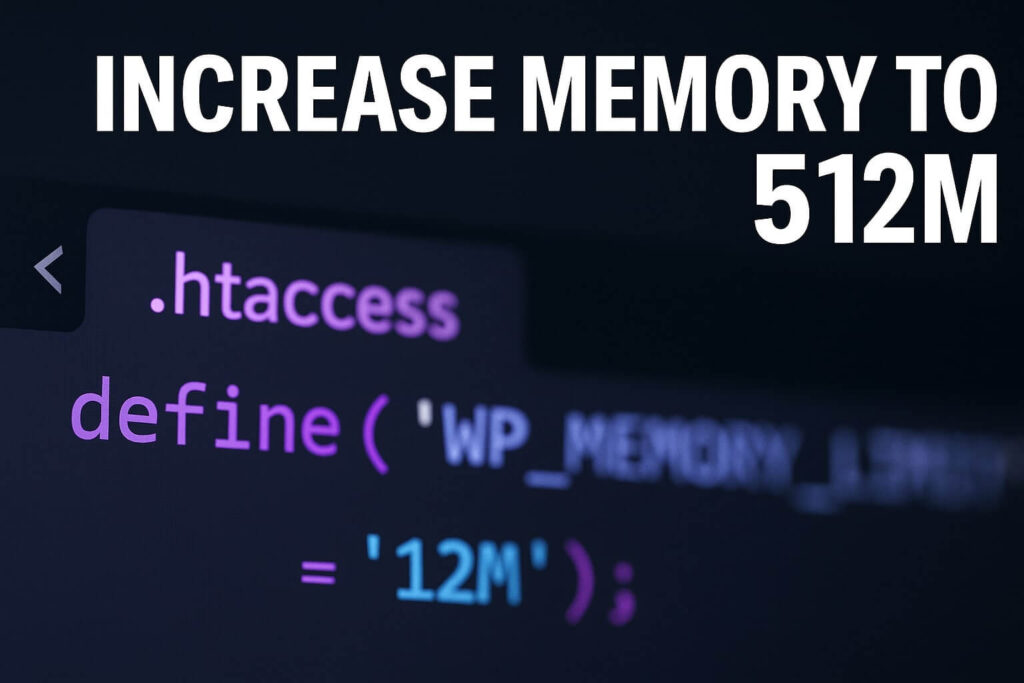
If your sidebar spins endlessly, your server is likely gasping for air. Elementor requires more memory than a standard WordPress blog. According to the official Elementor requirements, you need at least 256MB. If your limit is lower (e.g., 64MB), the script fails, causing the editor to hang.
We recommend increasing the limit to 512MB to ensure smooth performance for heavy designs.
Option A: Edit wp-config.php (Recommended)
You can define the memory limit manually in your configuration file.
-
Connect to your server via an FTP client like FileZilla or your hosting File Manager.
-
Locate the
wp-config.phpfile in thepublic_htmlfolder. -
Edit the file.
-
Paste this code just before the line that says “That’s all, stop editing”:
define( 'WP_MEMORY_LIMIT', '512M' );
-
Save the file.
Option B: Edit .htaccess
If wp-config.php doesn’t work, try the .htaccess file.
-
Locate the
.htaccessfile in your root directory. -
Edit the file.
-
Paste this code at the bottom:
Apache
php_value memory_limit 512M
-
Save the file.
After applying this fix, clear your browser cache and reload the editor. In 80% of cases, this solves the Elementor widget panel not loading issue immediately.
Method 2: Switch Loader Method to Fix Elementor Widget Panel Not Loading
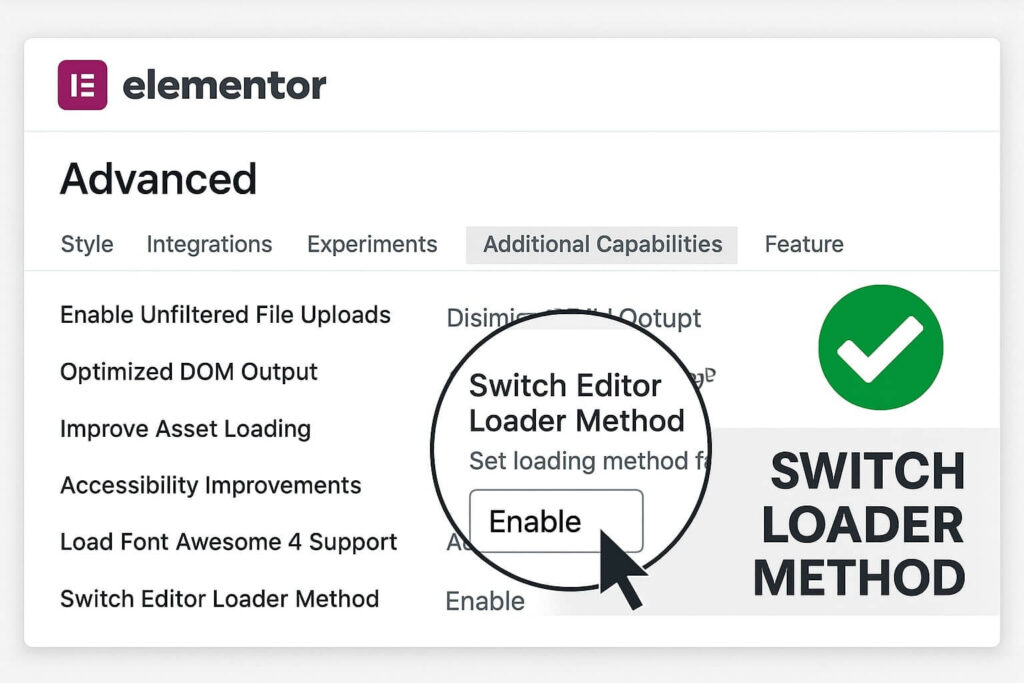
If increasing memory didn’t work, the issue might be how your server handles data requests. Elementor includes a specific setting designed to fix this exact sidebar glitch.
This hidden setting changes the mechanism Elementor uses to fetch the widget list. Toggling this is often the “magic button” for stuck loading screens.
Step 1: Go to Advanced Settings
Log in to your WordPress Dashboard. Navigate to Elementor > Settings.
Step 2: Access the Advanced Tab
Click on the Advanced tab at the top of the settings page.
Step 3: Switch Editor Loader Method
Look for a setting labeled “Switch Editor Loader Method”.
-
By default, it is usually “Disable”.
-
Change the dropdown to Enable.
Step 4: Save and Retest
Click Save Changes. Go back to your page and try to edit it. This forces the system to use a different script to load the sidebar, bypassing many server-side configuration conflicts that cause the Elementor widget panel not loading error.
Method 3: Check Plugin Conflicts Causing Elementor Widget Panel Not Loading
If you use third-party addons (like “Essential Addons” or “Happy Addons”), one of them might be breaking the sidebar. If an addon tries to load a bad widget, it can crash the entire panel, resulting in an infinite loading loop.
Step 1: Activate Safe Mode
Elementor has a built-in “Safe Mode” that disables all other plugins inside the editor.
-
Go to Elementor > Tools.
-
Set Safe Mode to “Enable”.
-
Save changes and open the editor.
If the sidebar loads correctly in Safe Mode, you know a plugin is the culprit.
Step 2: Identify the Conflict
-
Deactivate all plugins except Elementor.
-
Verify the sidebar works.
-
Reactivate your plugins one by one.
-
After each activation, refresh the editor.
-
When the loading glitch returns, the last plugin you activated is the cause.
Delete that plugin or contact its support team for an update.
Method 4: Fix Cloudflare Issues Causing Elementor Widget Panel Not Loading
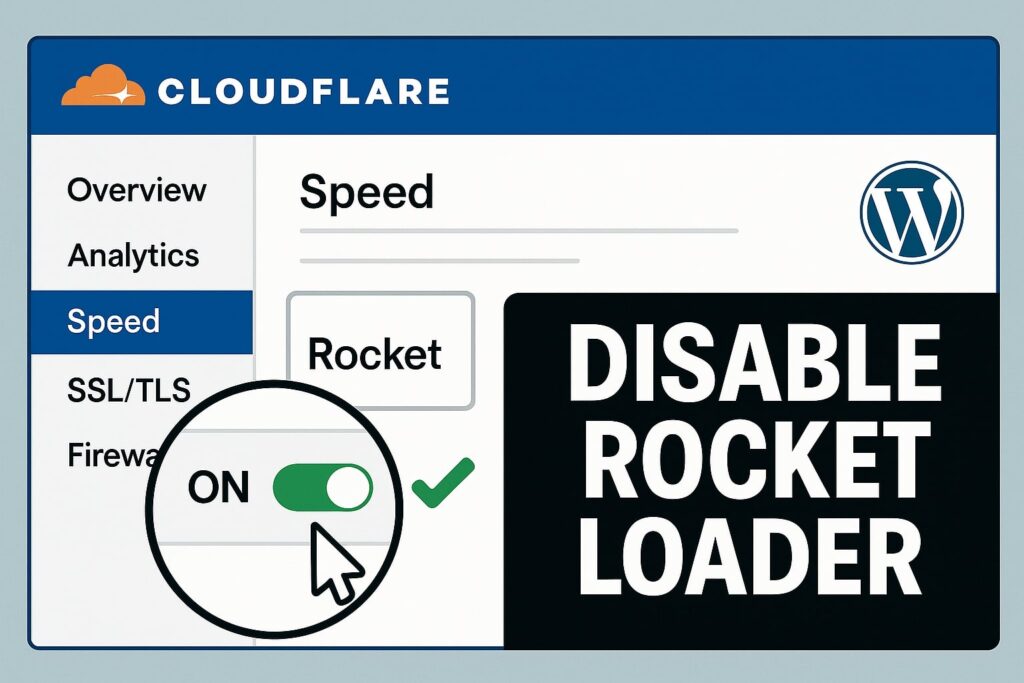
If you use Cloudflare or another CDN, a feature called “Rocket Loader” often breaks the scripts that power the sidebar. This external interference is a silent killer for page builders.
Step 1: Disable Rocket Loader
-
Log in to your Cloudflare dashboard.
-
Go to the Speed > Optimization tab.
-
Scroll down to Rocket Loader.
-
Toggle it to Off.
Step 2: Purge Cache
Click “Purge Everything” in Cloudflare.
Step 3: Check Your Editor
Go back to WordPress and reload. If Rocket Loader was stripping the sidebar JavaScript, disabling it will fix the Elementor widget panel not loading problem instantly.
Method 5: Recreate htaccess to Fix Elementor Widget Panel Not Loading
Sometimes, your server’s routing rules are corrupted, preventing the sidebar from “calling home” to get the widget list. Regenerating your permalink structure can reset these rules.
Step 1: Go to Permalinks
Navigate to Settings > Permalinks in your WordPress dashboard.
Step 2: Save Changes
You do not need to change anything. Simply scroll to the bottom and click Save Changes.
This forces WordPress to flush its rewrite rules and regenerate the .htaccess file. It is a simple trick, but it often resolves “403 Forbidden” errors that happen in the background when the sidebar tries to load.
Conclusion on the Elementor Widget Panel Not Loading
The spinning gray sidebar is a workflow killer, but it is almost always fixable. It is usually a sign that your server needs more memory or that a specific script is being blocked.
By systematically increasing memory, switching the loader method, and checking for plugin conflicts, you can banish the Elementor widget panel not loading error for good.
Summary of Fixes:
-
Memory Limit: Increase PHP memory to 512MB.
-
Loader Method: Switch the internal loading mechanism (Most effective fix).
-
Plugin Check: Identify conflict using Safe Mode.
-
Cloudflare: Disable Rocket Loader.
-
Permalinks: Regenerate .htaccess.
Still Stuck? If you have tried all 5 methods and still cannot see your widgets, you might have a deeper database issue. 👉 Contact Us Here for a professional audit, or visit our WordPress Support Page to get your Elementor sidebar working perfectly today.









