


Searching for a reliable woocommerce checkout spinning fix is usually a result of panic. You have a customer ready to pay, they fill out their details, click “Place Order,” and then… nothing happens. The loading icon spins endlessly.
The order never goes through, the customer gets frustrated, and they eventually abandon their cart. Consequently, you lose money every minute this error persists.
This specific error is known as the “Endless Spinning Wheel of Death.” Unlike a crash that shows an error code, this issue is a silent conversion killer. It usually means the communication between your customer’s browser and your server (via AJAX) has been interrupted or blocked.
🚀 Need this fixed instantly? If you are losing sales right now and cannot afford to troubleshoot, Click here to order our Emergency Fix Service. We will apply the woocommerce checkout spinning fix and restore your revenue stream within one hour.
In this extensive guide, we will break down the technical reasons behind this loop. Furthermore, we will provide you with 5 proven, step-by-step methods to resolve the issue and ensure your checkout flows smoothly.
Why the WooCommerce Checkout Spinning Error Happens
To fix the issue, you must understand how the WooCommerce checkout works. When a user clicks “Place Order,” the page does not reload. Instead, it uses a technology called AJAX to send the payment data to the server in the background.
The server processes the payment and sends a “Success” message back to the browser, which then redirects the user to the “Thank You” page.
The woocommerce checkout spinning fix is necessary when that conversation breaks. The browser sends the data and waits for an answer, but the server never responds, or it responds with an error that the browser doesn’t understand.
Common Triggers
-
JavaScript Conflicts: A plugin or theme is throwing an error that stops the checkout script.
-
Memory Exhaustion: The server runs out of RAM while trying to process the order.
-
Caching Issues: Your caching plugin is caching the checkout page (a huge “no-no” in eCommerce).
-
Permalinks: The internal routing of your WordPress site is confused.
We will address these issues systematically, starting with the most common culprit: memory limits.
Method 1: Increase Memory for WooCommerce Checkout Spinning Fix
WooCommerce is a heavy plugin. It requires significant server resources to process payments, calculate taxes, and manage inventory simultaneously. If your PHP memory limit is set to the default 64MB, the checkout process will likely stall.
Increasing the memory limit is often the easiest woocommerce checkout spinning fix.
Step 1: Connect to Your Server
First, open your FTP client (like FileZilla) or the File Manager in your hosting cPanel.
Step 2: Locate wp-config.php
Next, navigate to the public_html folder. Look for the file named wp-config.php.
Step 3: Add the Memory Code
Now, right-click the file and select Edit. Scroll down until you find the line that says: /* That's all, stop editing! Happy publishing. */.
Paste the following code just before that line to fix the allocation issue:
define( 'WP_MEMORY_LIMIT', '512M' );

Step 4: Save and Test
Finally, save the file. Go to your checkout page, refresh, and try to place a test order.
If the order goes through, you have successfully applied the woocommerce checkout spinning fix. If it still spins, the issue is likely a code conflict. Proceed to Method 2.
Method 2: Check Plugin Conflicts Requiring a WooCommerce Checkout Spinning Fix
If increasing memory didn’t work, a “Plugin Conflict” is the next likely suspect. Often, a plugin unrelated to eCommerce (like a contact form or a slider) loads a broken JavaScript file on every page, including the checkout. This breaks the AJAX process.
Diagnosing this requires a strict process of elimination.
Step 1: Install a Check Plugin (Optional)
You can use the “Health Check & Troubleshooting” plugin to disable plugins for you only, while keeping the site live for visitors. However, for a true test, we recommend doing this on a staging site.
Step 2: Deactivate Non-Essential Plugins
Navigate to Plugins > Installed Plugins.
-
Select all plugins except WooCommerce and your Payment Gateway (e.g., Stripe or PayPal).
-
Choose Deactivate from the bulk actions menu.
-
Click Apply.
Step 3: Retest Checkout
Go to your checkout page and place an order.
-
If it works: One of your other plugins causes the loop.
-
If it fails: The issue lies elsewhere (proceed to Method 3).
If it worked, reactivate your plugins one by one. After each activation, test the checkout. When the spinning returns, the last plugin you activated is the culprit requiring a woocommerce checkout spinning fix.
Method 3: Fix Theme Conflicts Causing Spinning Checkout
Themes are responsible for the layout and scripts of your checkout page. If your theme is outdated or poorly coded, it might not handle the standard WooCommerce AJAX requests correctly.
Testing for a theme conflict is a crucial step in finding a woocommerce checkout spinning fix.
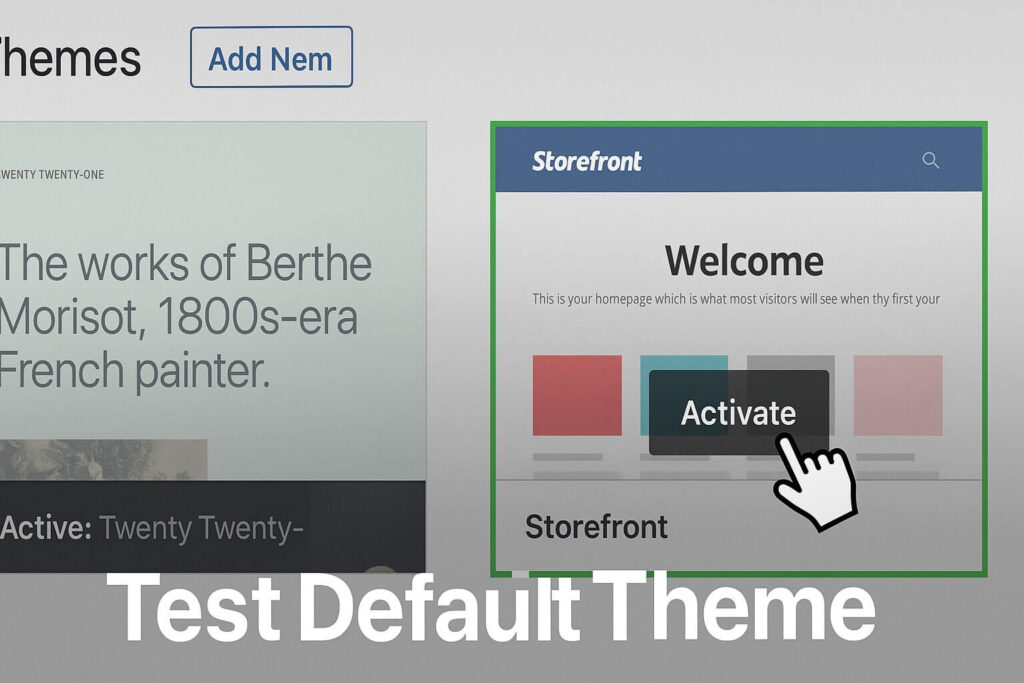
Step 1: Switch to a Default Theme
-
Go to Appearance > Themes.
-
Activate a default WordPress theme like Twenty Twenty-Four or the official Storefront theme.
Step 2: Clear Cache
If you use a caching plugin, clear all caches.
Step 3: Place a Test Order
Try to complete a purchase. If the checkout works perfectly with the default theme, the issue is inside your original theme.
Solution: Check if your theme has an update available. If it is already updated, contact the theme developer and report that their theme requires a woocommerce checkout spinning fix.
Method 4: Fix AJAX Endpoint Issues
Sometimes, the issue isn’t a plugin or theme, but rather how the server handles the specific “URL” that processes the checkout.
WooCommerce uses a specific endpoint (wc-ajax=checkout) to process orders. If your server blocks this or if your permalinks are corrupted, the browser cannot reach the server.
Step 1: Resave Permalinks
-
Go to Settings > Permalinks.
-
Scroll to the bottom.
-
Click Save Changes (you don’t need to change anything).
This resets the internal routing rules and is a common woocommerce checkout spinning fix.
Step 2: Check Your Payment Gateway
Sometimes, the issue is specific to the payment method.
-
Go to WooCommerce > Settings > Payments.
-
Enable “Cash on Delivery” or “Check Payments.”
-
Try to checkout using that offline method.
If the offline method works but Credit Card fails, the issue is with your payment gateway credentials (API keys) or the gateway plugin itself.
Method 5: Disable Checkout Field Editors
Many store owners use plugins to add custom fields (like “Delivery Date” or “Gift Message”) to the checkout page. These plugins are notorious for breaking the validation logic.
If a field is hidden but marked as “Required,” the form will try to validate it, fail, and get stuck in an endless loop because the user cannot see the error message.
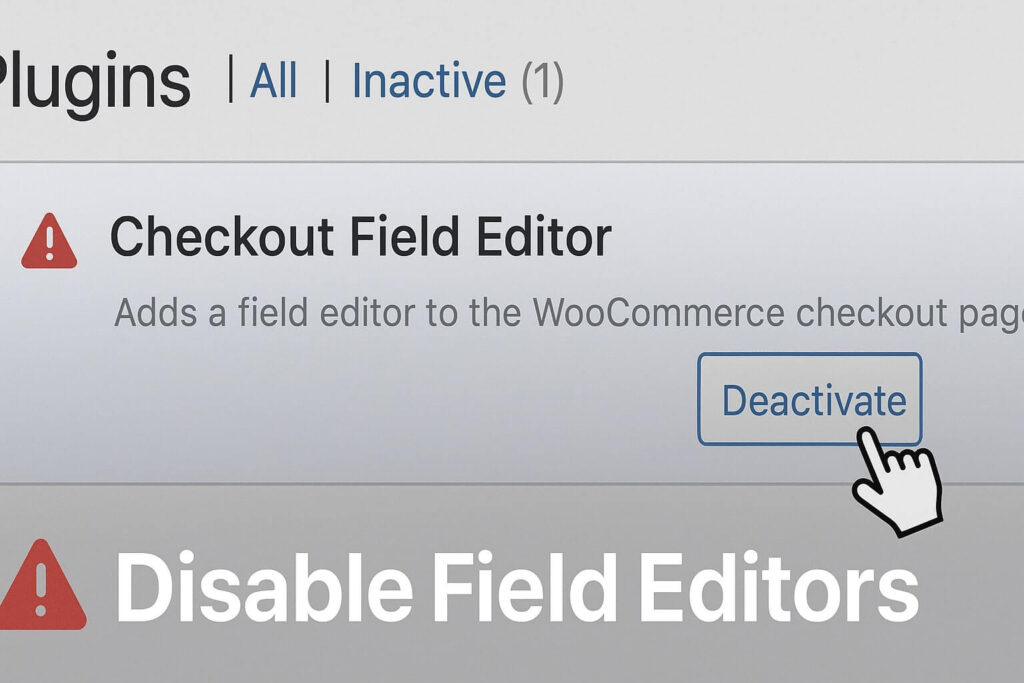
Step 1: Deactivate Field Editors
If you use plugins like “Checkout Field Editor for WooCommerce,” deactivate them immediately.
Step 2: Test Standard Checkout
Try to checkout with the standard billing/shipping fields. If this works, you have found the cause.
Step 3: Reconfigure
To apply a permanent woocommerce checkout spinning fix, check the settings of your field editor. Ensure no hidden fields are set to “Required.”
Conclusion on the WooCommerce Checkout Spinning Fix
The “Endless Spinning Wheel” is a revenue killer, but it is almost always fixable. It is usually a sign that your server environment or script setup needs adjustment.
By systematically increasing memory, eliminating conflicts, and checking your theme, you can ensure your customers sail through to the “Thank You” page every time.
Summary of Fixes:
-
Memory: Increase to 512MB in wp-config.php.
-
Plugins: Deactivate non-essentials to find conflicts.
-
Theme: Test with Storefront.
-
Permalinks: Resave to flush rewrite rules.
-
Fields: Disable custom checkout field plugins.
Still Stuck? If you have tried all 5 methods and still cannot accept payments, the issue might be a deeper database corruption or hosting restriction. 👉 Contact Us Here for a professional audit, or visit our Service Page to get your checkout working perfectly today.









