


You need a reliable yoast sitemap 404 fix because Google cannot crawl your website properly without it. You installed the Yoast SEO plugin, configured your settings, and submitted your URL to Google Search Console. However, instead of a “Success” status, you see a dreaded “Couldn’t Fetch” error.
When you try to visit the sitemap URL directly (usually yourdomain.com/sitemap_index.xml), you see your website’s 404 error page.
This situation creates immediate anxiety. If Google cannot find the map, it cannot find your new posts or products efficiently. Consequently, your rankings suffer.
The good news involves the nature of the problem. Your XML file is not actually “missing.” It is simply hidden behind a configuration mismatch. Yoast generates maps dynamically, meaning they are not physical files on your server.
🚀 Need this fixed instantly? If you are uncomfortable editing server config files, Click here to order our Quick Fix Service. We will apply the yoast sitemap 404 fix and ensure Google indexes your site within one hour.
In this guide, we will break down the technical reasons behind this routing error and provide 5 proven methods to restore your visibility.
Why You Need a Yoast Sitemap 404 Fix
To apply the correct solution, you must understand how Yoast generates these files.
Unlike older plugins that created a static file, Yoast uses “Rewrite Rules.” When a browser requests sitemap_index.xml, WordPress intercepts that request and runs a PHP script to build the map on the fly.
The yoast sitemap 404 fix becomes necessary when this interception fails. If the server doesn’t know that the XML URL is a special request, it looks for a real file, doesn’t find one, and throws a 404 error.
Common Triggers
-
Permalink Issues: The most common cause. WordPress hasn’t updated its internal map.
-
Caching Conflicts: A plugin is treating the map like a static page.
-
Server Configuration: Your Nginx or Apache server lacks the specific code.
-
Plugin Conflicts: Another SEO tool is fighting for control.
We will address these issues systematically.
Method 1: Reset Permalinks for a Yoast Sitemap 404 Fix
In approximately 80% of cases, the solution is ridiculously simple. You just need to force WordPress to “flush” its rewrite rules. This reminds the system that the XML URL is valid.
You do not need to code anything. You simply need to click a button.
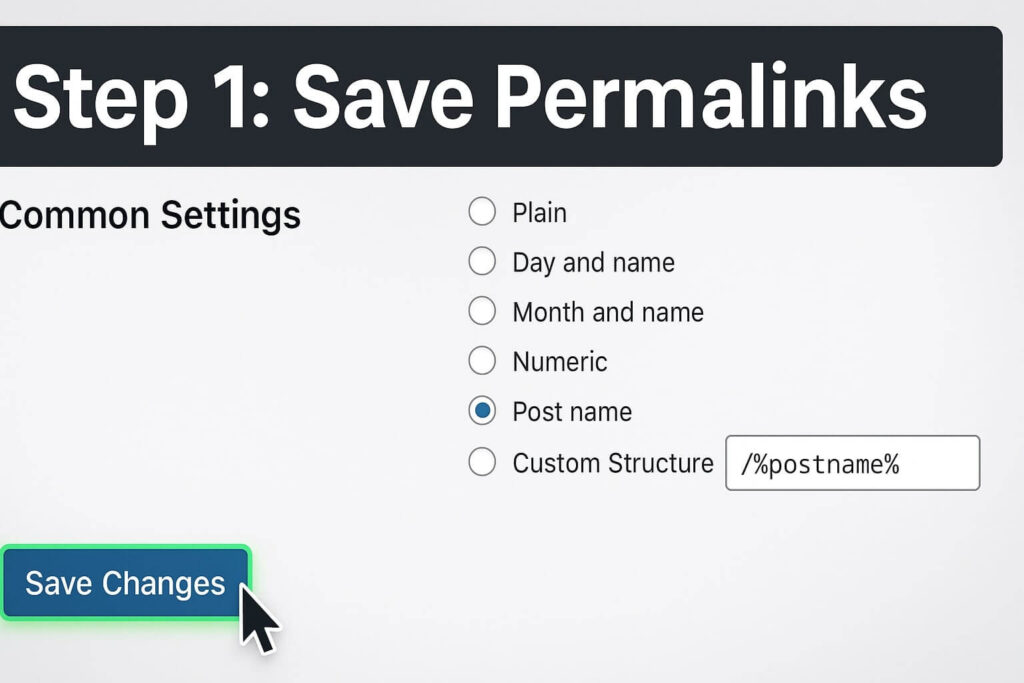
Step 1: Go to Settings
Log in to your WordPress Dashboard. Navigate to Settings > Permalinks.
Step 2: Save Changes
Scroll to the very bottom. Do not change any settings. Simply click the Save Changes button.
Step 3: Verify the Sitemap
Open a new browser tab. Type in your sitemap URL.
-
If it loads: You are done!
-
If it fails: Proceed to the next step.
Step 4: Toggle the Feature
Sometimes the plugin itself needs a reset.
-
Go to Yoast SEO > General.
-
Click the Features tab.
-
Toggle “XML Sitemaps” to Off.
-
Click Save Changes.
-
Toggle it back to On and save again.
This combination often forces the yoast sitemap 404 fix to take effect immediately.
Method 2: Exclude Cache for Yoast Sitemap 404 Fix
Caching plugins are fantastic for speed, but they often break dynamic files. If your caching tool tries to “minify” the XML file, it can result in a blank page. Excluding the URL is a critical step.
We will cover the steps for WP Rocket, but the logic applies to W3 Total Cache and others.
For WP Rocket Users:
-
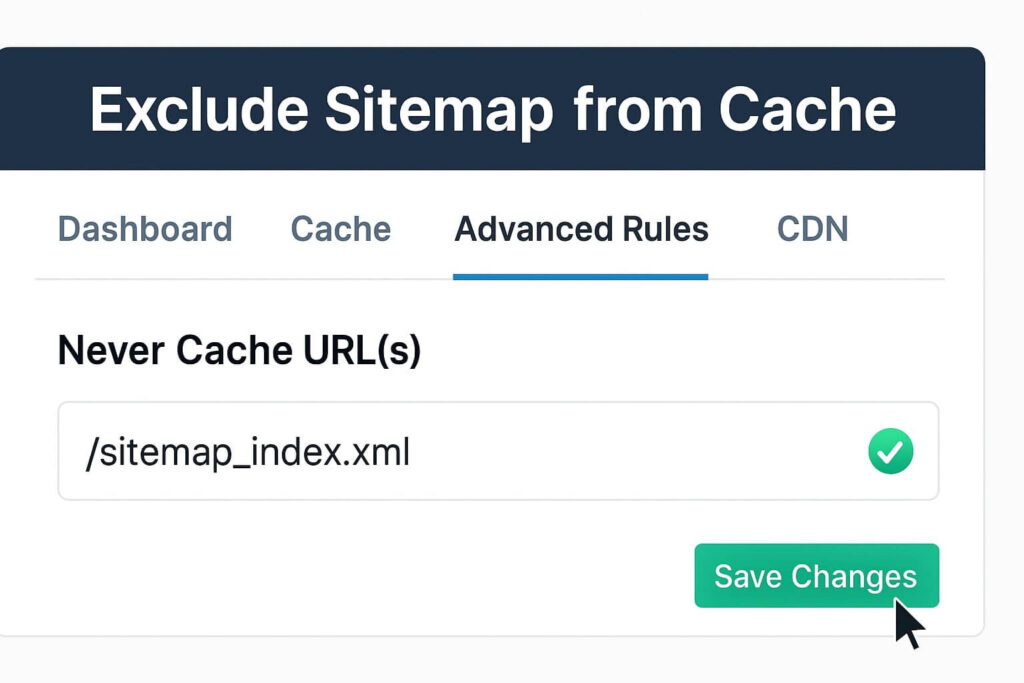
Go to Settings > WP Rocket.
-
Click on the Advanced Rules tab.
-
Find the box labeled “Never Cache URL(s)”.
-
Enter the following lines:
/sitemap_index.xml /sitemap(.*).xml /xsl-stylesheet -
Click Save Changes.
Step 3: Clear Cache
After adding the exclusions, you must Purge All Caches. Then, check your URL again. If the cache was the culprit, the structure should now render correctly.
Method 3: Edit .htaccess for Yoast Sitemap 404 Fix
If resetting permalinks didn’t work and you are on a shared host (like Bluehost), you likely use an Apache server. You must manually add rewrite rules to apply the yoast sitemap 404 fix.
Step 1: Connect to Server
Use an FTP client like FileZilla to access your files.
Step 2: Locate .htaccess
Navigate to the public_html folder. Find the .htaccess file.
Step 3: Add the Rewrite Code
Paste the following code before the # BEGIN WordPress line:
# Yoast SEO - XML Sitemap Rewrite Fix
<IfModule mod_rewrite.c>
RewriteEngine On
RewriteBase /
RewriteRule ^sitemap_index.xml$ /index.php?sitemap=1 [L]
RewriteRule ^([^/]+?)-sitemap([0-9]+)?.xml$ /index.php?sitemap=$1&sitemap_n=$2 [L]
</IfModule>
This code forces the server to send the request to the correct internal script.
Method 4: Nginx Config for Yoast Sitemap 404 Fix
If you use a VPS or a host like Kinsta, you are likely running on Nginx. Nginx does not use .htaccess files. Therefore, you must edit the config file directly.
Step 1: Access Config File
Connect via SSH. Locate your site’s config file (usually in /etc/nginx/sites-available/).
Step 2: Add Rewrite Rules
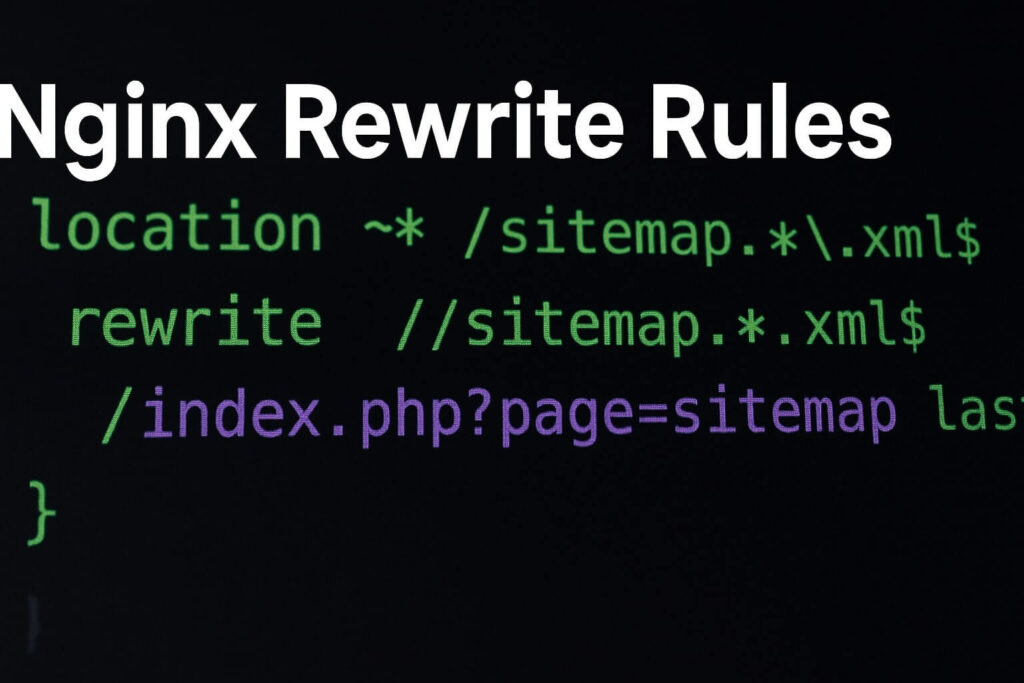
Add these lines inside the server block to implement the yoast sitemap 404 fix:
location ~ ([^/]*)sitemap(.*).x(m|s)l$ {
  rewrite ^/sitemap_index.xml$ /index.php?sitemap=1 last;
  rewrite ^/([^/]+?)-sitemap([0-9]+)?.xml$ /index.php?sitemap=$1&sitemap_n=$2 last;
}
Step 3: Restart Nginx
Restart the service (sudo service nginx restart). This creates a direct map for the server.
Method 5: Debug Themes for Yoast Sitemap 404 Fix
If server-side fixes fail, the issue might be code inside your theme’s functions.php file. Developers sometimes write code that flushes rules on every load, corrupting the generation process.
Step 1: Switch to Default Theme
Activate a default theme like Twenty Twenty-Four.
Step 2: Reset Permalinks
Go to Settings > Permalinks and click Save Changes.
Step 3: Test URL
Check the URL. If it works, your original theme is coded incorrectly. Contact the developer for a patch.
Conclusion on the Yoast Sitemap 404 Fix
The 404 error is frustrating, but it is rarely a sign of a broken website. It is almost always a simple miscommunication between WordPress and your web server.
By systematically resetting permalinks, excluding files from cache, and applying server rules, you can ensure Google always finds its way.
Summary of Fixes:
-
Permalinks: The “Save Changes” button is your best friend.
-
Cache: Exclude XML files.
-
Apache: Add rules to
.htaccess. -
Nginx: Add rules to server config.
-
Conflicts: Test themes.
Still Stuck? If you have tried all 5 methods and still see the error, you might have a deeper hosting issue. 👉 Contact Us Here for a professional SEO audit, or visit our WordPress Services page to get your sitemap fixed today.









