


Encountering a slider revolution mobile error can ruin your homepage’s first impression on smartphones. You spent hours designing the perfect hero section on your desktop, but when you check your iPhone, the screen is completely blank.
This problem is incredibly common. Revolution Slider is a complex visual editor that relies heavily on JavaScript. If your slider works on a laptop but vanishes on a phone, it is rarely a broken plugin. Instead, it is usually a configuration setting or a conflict with optimization tools.
🚀 Need this fixed instantly? If you are uncomfortable editing plugin settings or debugging JavaScript, Click here to order our Quick Fix Service. We will resolve this mobile slider issue and ensure your animations look perfect on every device within one hour.
In this guide, we will troubleshoot this visibility glitch. Furthermore, we will provide you with 5 proven methods to force your content to appear on smartphones and tablets.
Why the Slider Revolution Mobile Error Happens
To fix the issue, you must understand how the plugin renders content. Slider Revolution creates a layer of HTML and JavaScript on top of your page.
When you encounter this mobile display failure, it typically means one of three things occurred:
-
Visibility Settings: You accidentally toggled the “Hide on Mobile” switch.
-
JavaScript Conflict: A “Speed” plugin is delaying the slider’s code.
-
Lazy Loading: Images are being held back, leaving the container empty.
We will address these issues systematically.
Method 1: Check Visibility to Fix Slider Revolution Mobile Error
In approximately 60% of cases, this issue is not a bug; it is a feature. The plugin has a specific setting designed to disable heavy sliders on phones to save data. If this setting is active, your content will simply disappear on small screens.
You can read more about these settings in the official Slider Revolution Documentation.
Step 1: Open Module General Options
First, go to your WordPress Dashboard and click on Slider Revolution. Open the slider that is failing.
Next, look at the right-hand sidebar. Click on the General tab (gear icon).
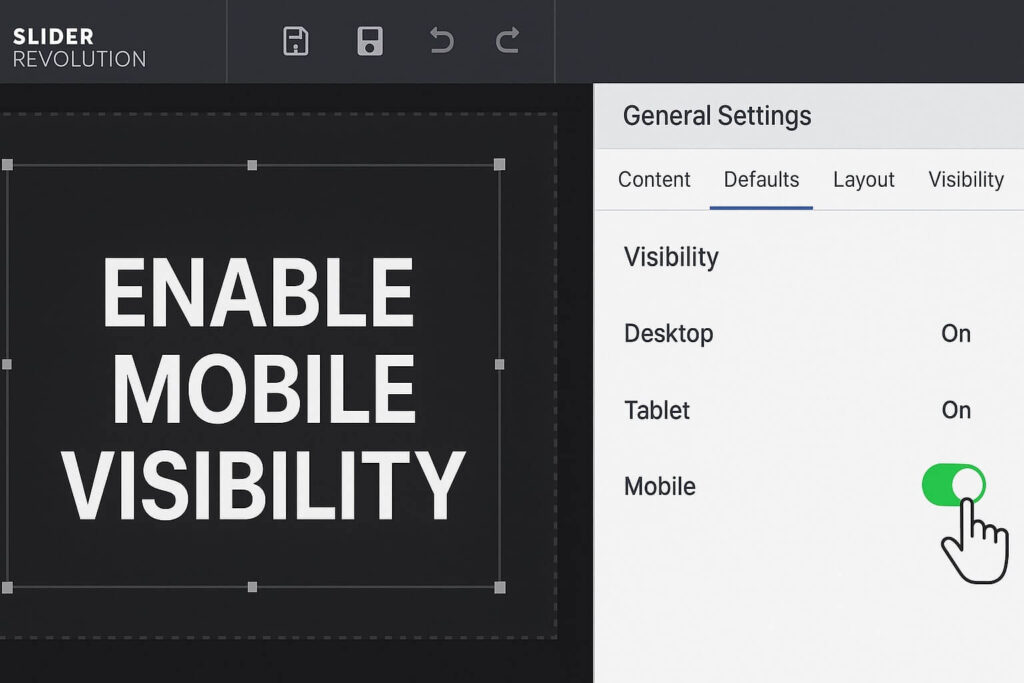
Step 2: Navigate to Visibility
Click on the “General Settings” submenu and find the “Visibility” section.
Step 3: Toggle the Mobile Setting
You will see a set of toggles for different devices.
-
Check the “Mobile” toggle. If it is switched to “OFF” (or Red), this is causing the hidden slide problem.
-
Action: Switch it to “ON” (Green).
Step 4: Check “Hide on Mobile”
Additionally, scroll down further. Ensure the option “Hide on Mobile” is set to OFF.
Finally, save the module. If the settings were the cause, your slides will reappear immediately.
Method 2: Fix JS Conflicts Causing Slider Revolution Mobile Error
If your visibility settings are correct, but you still see the slider revolution mobile error, your site likely has a JavaScript conflict. Mobile browsers are sensitive to script errors.
This often happens with “Defer Parsing of JavaScript” features found in speed plugins like WP Rocket.
Step 1: Disable “Defer JS”
If you use optimization plugins:
-
Go to the plugin settings.
-
Find the “File Optimization” tab.
-
Temporarily disable “Defer JavaScript Execution”.
Step 2: Test on Mobile
Clear your cache and check your phone. If the blank space disappears, you have confirmed a conflict.
Step 3: Add an Exclusion
You do not need to keep “Defer JS” off permanently. Instead, add the Revolution Slider scripts to the “Excluded Files” list in your optimization plugin.
-
jquery.themepunch.revolution.min.js -
jquery.themepunch.tools.min.js
This ensures your speed plugin ignores the slider, allowing it to load naturally.
Method 3: Disable Lazy Loading for Slider Revolution Mobile Error
Lazy loading is great for page speed, but it often triggers visibility issues on phones. Lazy loading tells the browser not to load images until the user scrolls.
However, Slider Revolution needs images to be fully loaded before it calculates the slide height. If images are missing, the slider collapses to a height of 0 pixels.
Step 1: Check Revolution Slider’s Lazy Load
-
Open your Slider Settings.
-
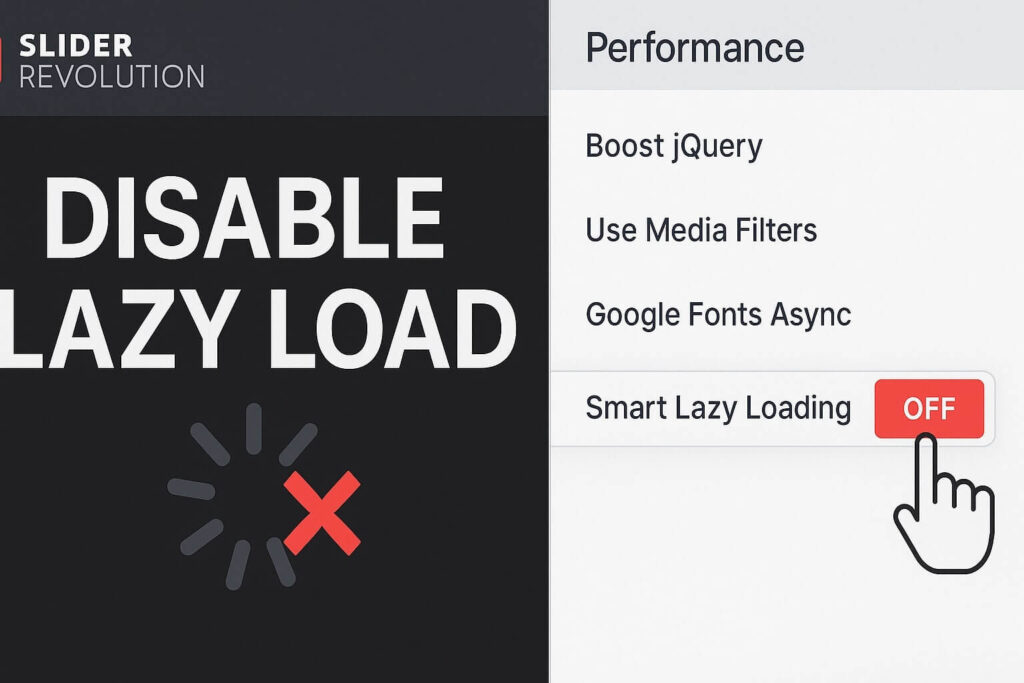
Go to General > Performance.
-
Ensure “Smart Lazy Loading” is set to OFF.
Step 2: Check External Lazy Load
If you use Smush or Jetpack, they force lazy loading.
-
Go to your optimization plugin settings.
-
Exclude your slider images or the slider CSS class (
.rev_slider).
By forcing images to load immediately, you ensure the mobile browser renders the slideshow correctly.
Method 4: Script Loading Fix for Slider Revolution Mobile Error
Sometimes, the slider revolution mobile error happens because the slider’s code loads before the core WordPress libraries are ready. This creates a “race condition” where the slider fails to run.
Slider Revolution has a built-in fix for this.
Step 1: Global Settings
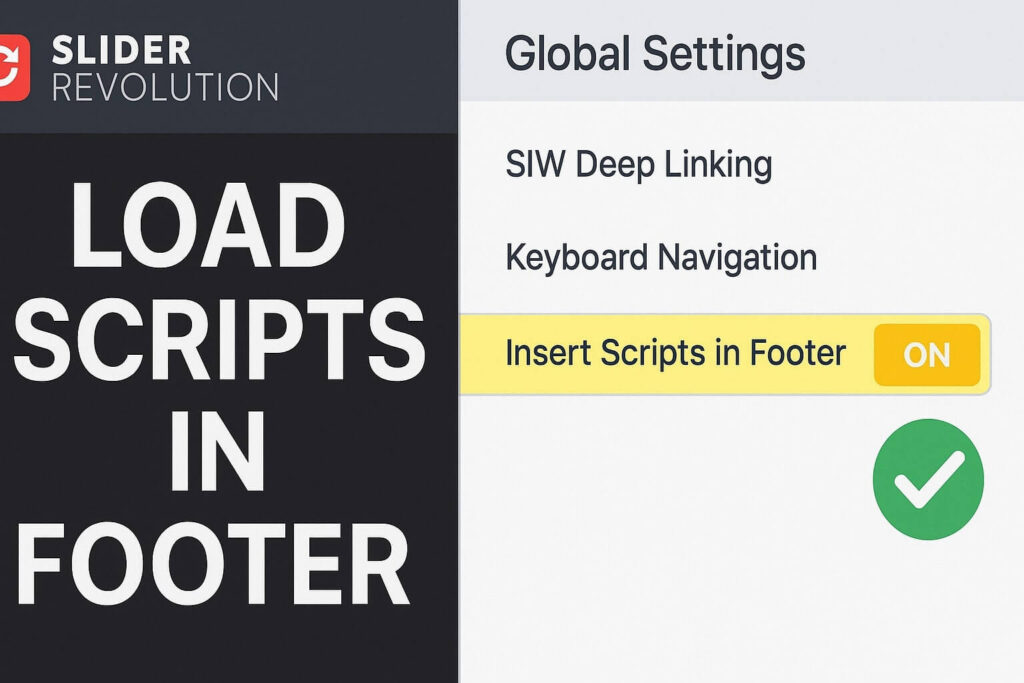
Go to your main WordPress Dashboard menu. Hover over Slider Revolution and click Globals.
Step 2: Adjust Script Loading
Look for a section labeled “Insert Scripts in Footer”.
-
Toggle it to “ON”.
Step 3: Enable “Defer”
Just below that, look for “Defer JavaScript”.
-
Toggle it to “OFF”.
Step 4: Save and Clear Cache
Click the blue Save Global Settings button. This forces the slider scripts to load at the very end, often solving the loading glitch.
Method 5: Conflict Test for Slider Revolution Mobile Error
If methods 1 through 4 failed, you might have a deeper theme conflict causing the blank mobile screen. Some themes come with their own sliders that fight for control.
Step 1: Switch Theme
First, navigate to Appearance > Themes. Activate a default theme like Twenty Twenty-Four. Check your mobile site.
-
If it works: Your original theme has a conflict.
Step 2: Plugin Conflict Test
Next, if the theme wasn’t the issue:
-
Deactivate all plugins except Slider Revolution.
-
Check your mobile site.
-
If the slides reappear, reactivate plugins one by one.
-
Reload the mobile page after each activation.
-
The moment the issue returns, the last plugin you activated is the culprit.
Conclusion on the Slider Revolution Mobile Error
A missing mobile slider makes your site look broken. However, the slider revolution mobile error is almost always a configuration mismatch rather than a fatal crash.
By verifying your visibility toggles, excluding scripts from caching, and managing lazy loading, you can ensure your visual content shines on every screen size.
Summary of Fixes:
-
Visibility: Ensure the “Mobile” toggle is Green.
-
Scripts: Exclude RevSlider from “Defer JS”.
-
Images: Disable Lazy Loading.
-
Loading: Force scripts to footer.
-
Conflicts: Test themes.
Still Stuck? If you have tried all 5 methods and still see a blank space on your phone, you might have a CSS z-index issue. 👉 Contact Us Here for a professional audit, or visit our WordPress Maintenance Services page to get your slider fixed today.









