


Encountering the mixed content error WordPress warning can be incredibly frustrating after you have already gone through the effort of installing an SSL certificate. You expect to see the secure green padlock in your browser bar, but instead, you see a grey “Not Secure” warning or a broken padlock icon.
This issue creates immediate distrust with your visitors. Even though your main site is loading over HTTPS, the browser is telling them that parts of your website are still unsafe. Consequently, users may leave your site immediately, fearing their data is at risk.
The good news is that the mixed content error WordPress issue is not a sign of a hacked site or a broken certificate. It simply means that while your main HTML is secure, some specific resources—like images, scripts, or fonts—are still loading over the old insecure HTTP protocol.
🚀 Need this fixed instantly? If you are uncomfortable editing database tables or server files, Contact Us Here to order our Quick Fix Service. We will resolve the mixed content error WordPress issue and get your green padlock back within one hour.
In this extensive guide, we will break down exactly why these insecure links persist. Furthermore, we will provide you with 5 proven, step-by-step methods to fix them using plugins like Really Simple SSL and manual database techniques.
Why the Mixed Content Error WordPress Warning Occurs
To fix the issue effectively, you must understand how browsers handle security. When a user visits your site via https://, the browser expects every single asset on that page to also come from a secure source.
If even one tiny pixel-tracking image or a single font file loads over http://, the browser declares the entire page “compromised.” This triggers the mixed content error WordPress alert.
Common Culprits
-
Hardcoded Database Links: Your old posts still contain image links pointing to
http://yourdomain.cominstead of the HTTPS version. -
Theme Files: A developer hardcoded a script URL (like Google Fonts or jQuery) in your
header.phpusing HTTP. -
Elementor/CSS: Page builders often save absolute URLs in their CSS files, which do not update automatically when you switch to HTTPS.
-
External Widgets: An old badge or widget from a third-party site acts as the source of the insecure link.
We will address these issues systematically, starting with the easiest plugin-based solution.
Method 1: Use Really Simple SSL to Fix Mixed Content Error WordPress
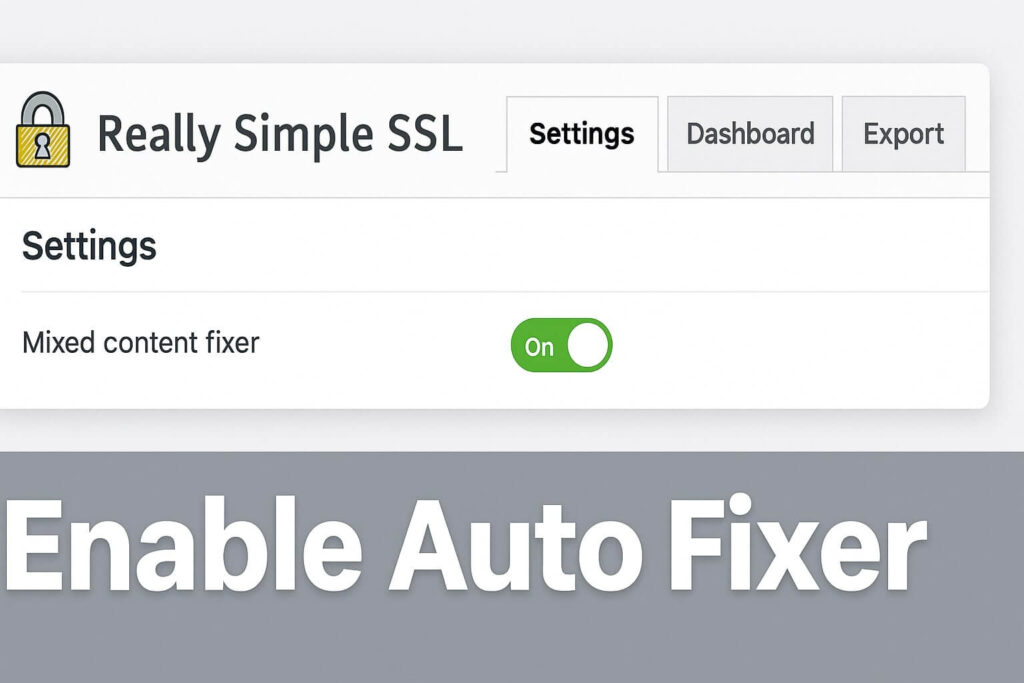
If you want the quickest solution without touching code or databases, the Really Simple SSL plugin is the industry standard. It has a built-in “Mixed Content Fixer” that dynamically changes HTTP links to HTTPS as the page loads.
While this is technically a “band-aid” (because the links in the database remain HTTP), it resolves the visible mixed content error WordPress problem instantly for your visitors.
Step 1: Install the Plugin
-
Log in to your WordPress Dashboard.
-
Navigate to Plugins > Add New.
-
Search for “Really Simple SSL”.
-
Install and Activate the plugin.
Step 2: Activate SSL
Upon activation, the plugin will scan your site. You will see a prompt asking to “Activate SSL.” Click that button.
Step 3: Enable the Mixed Content Fixer
-
Navigate to Settings > SSL.
-
Click on the Settings tab.
-
Scroll down to the “Mixed Content” section.
-
Ensure the toggle for “Mixed content fixer” is enabled (Green).
Step 4: Verify the Fix
Clear your cache and reload your website. In 90% of cases, the mixed content error WordPress warning will disappear, and the padlock will return.
Method 2: Search and Replace to Fix Mixed Content Error WordPress
While Method 1 works well, the “best practice” involves fixing the links permanently in your database. This removes the need for the plugin to process links on every page load, thereby improving your site speed.
To apply a permanent mixed content error WordPress fix, you must replace all instances of http://yourdomain.com with https://yourdomain.com in your database.
Warning: Always backup your database before performing this step.
Step 1: Install Better Search Replace
-
Go to Plugins > Add New.
-
Search for “Better Search Replace”.
-
Install and Activate the plugin.
Step 2: Configure the Search
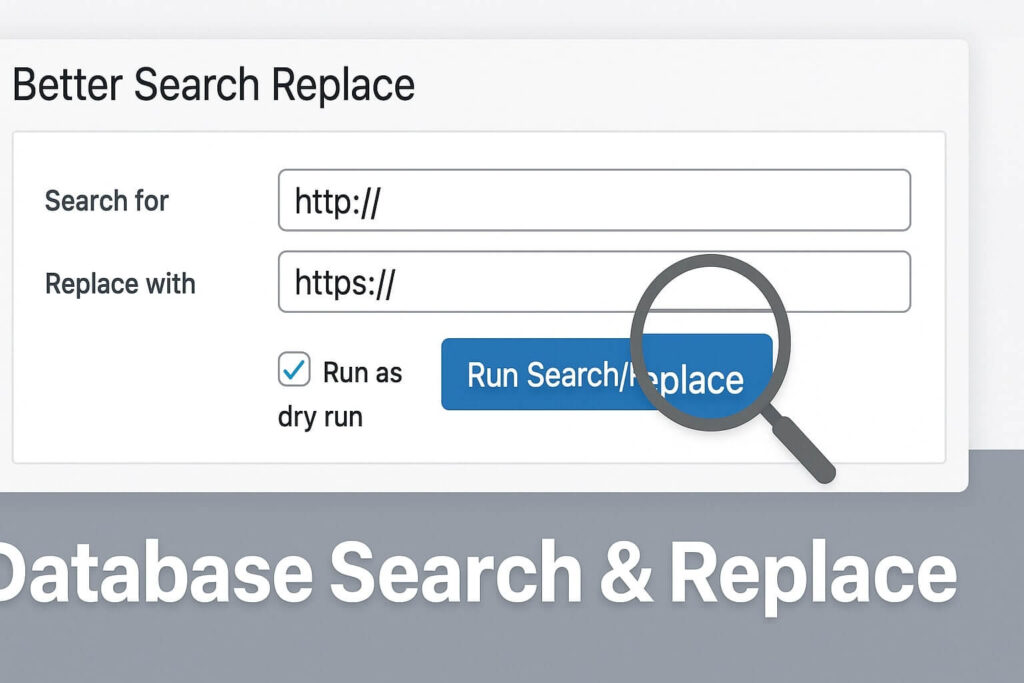
Navigate to Tools > Better Search Replace.
-
Search for:
http://yourdomain.com(replace with your actual domain). -
Replace with:
https://yourdomain.com. -
Select Tables: Select all tables (Ctrl+Click or Cmd+Click to select multiple).
Step 3: Run a Dry Run
Keep the “Run as dry run” box checked. Click Run Search/Replace. This will show you how many insecure links exist without changing anything.
Step 4: Execute the Replacement
If the dry run found results, uncheck the “Run as dry run” box and click Run Search/Replace again.
This permanently updates your database, serving as the ultimate mixed content error WordPress solution.
Method 3: Fix Elementor CSS for Mixed Content Error WordPress
If you use Elementor, simply updating the database (Method 2) might not be enough. Elementor stores CSS files in a separate folder, and these files often contain hardcoded HTTP links to background images.
This is a very common cause of the mixed content error WordPress warning for page builder users.
Step 1: Go to Elementor Tools
Navigate to Elementor > Tools in your WordPress dashboard.
Step 2: Replace URLs
Click on the Replace URL tab.
-
Old URL:
http://yourdomain.com -
New URL:
https://yourdomain.com -
Click Replace URL.
Step 3: Regenerate CSS
Now, click on the General tab within the Elementor Tools page.
-
Find “Regenerate CSS & Data”.
-
Click the Regenerate Files button.
Step 4: Clear Cache
Clear your browser and server cache. This forces Elementor to rebuild its stylesheets using the secure HTTPS links, resolving the mixed content error WordPress issue.
[Image: elementor-regenerate-css-fix-mixed-content.jpg] Alt Text: Regenerating Elementor CSS files to resolve the mixed content error WordPress.
Method 4: Fix Hardcoded Scripts Causing Mixed Content Error WordPress
Sometimes, the insecure content isn’t in the database or the page builder. It is hardcoded into your theme’s header.php or footer.php file. This usually happens with older themes loading Google Fonts or jQuery over HTTP.
To fix this specific mixed content error WordPress instance, you must find the specific file causing the problem using your browser.
Step 1: Use the Inspector
-
Visit your website.
-
Right-click anywhere and select Inspect.
-
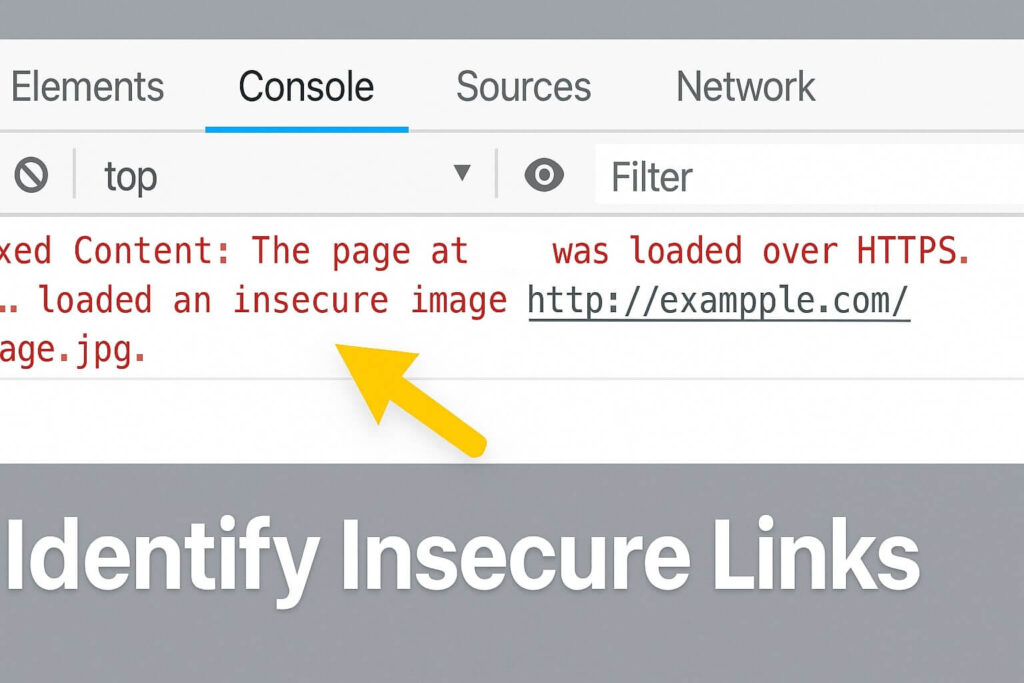
Click on the Console tab.
-
Look for red or yellow warnings. They will say something like: “Mixed Content: The page at ‘https://…’ was loaded over HTTPS, but requested an insecure script ‘http://…’.”
Step 2: Locate the File
The error usually points to the specific file loading the resource. If it is a theme file, you need to edit it.
Step 3: Edit the Theme File
-
Go to Appearance > Theme File Editor.
-
Locate the file mentioned (often
header.phporfunctions.php). -
Search for
http://. -
Change it to
https://or remove the protocol entirely (changehttp://fonts.google...to//fonts.google...).
Method 5: Force Content Security Policy (CSP)
If you cannot find the source of the insecure link, or if it is coming from a third-party plugin you cannot edit, you can force the browser to upgrade the request automatically.
This is an advanced mixed content error WordPress fix that uses a security header.
Step 1: Edit .htaccess
Access your site via FTP and locate the .htaccess file in your root directory.
Step 2: Add the Header
Paste the following code at the top of the file:
<IfModule mod_headers.c>
Header always set Content-Security-Policy "upgrade-insecure-requests;"
</IfModule>
Step 3: Save and Test
This code tells the visitor’s browser: “If you see any HTTP link on this site, act as if it is HTTPS.” It effectively forces a secure connection for every resource, eliminating the mixed content error WordPress warning on the client side.
Conclusion on the Mixed Content Error WordPress Issue
The missing padlock is a trust killer. When visitors see “Not Secure,” they leave. However, the issue is rarely a broken certificate; it is usually just “leftover” links from your old HTTP setup.
By using Really Simple SSL for a quick fix or Better Search Replace for a permanent cleanup, you can ensure your site is fully secure.
Summary of Fixes:
-
Plugin: Use Really Simple SSL’s fixer.
-
Database: Run Better Search Replace.
-
Elementor: Regenerate CSS & Data.
-
Inspector: Find hardcoded theme scripts.
-
CSP: Force upgrade requests via .htaccess.
Still Seeing the Warning? If you have tried all 5 methods and still face the mixed content error WordPress issue, you might have a deep server-side cache or a CDN configuration issue.
Check Out Our Service Price Plan to get a professional audit, or Contact Us today to let our experts fix your SSL issues instantly.









