


You need an immediate wp rocket layout fix because your beautiful website has suddenly turned into a jumbled mess of unstyled text and blue links. You activated WP Rocket to speed up your site, and you are using Cloudflare for security, but instead of a blazing fast experience, your visitors are seeing a “skeleton” version of your pages.
This phenomenon is often called FOUC (Flash of Unstyled Content) or simply a “broken design.” It happens when the CSS files—the code that makes your site look good—fail to load or are processed incorrectly.
Suddenly, your columns are stacked, your colors are gone, and your images are misaligned. If you clear your browser cache, it might look fine for a second, but then the error returns.
🚀 Need this fixed instantly? If you are uncomfortable tweaking CDN settings or API keys, Click here to order our Quick Fix Service. We will apply the wp rocket layout fix and synchronize your caching tools within one hour.
In this extensive guide, we will troubleshoot the conflict between these two powerful tools. Furthermore, we will provide you with 5 proven methods to resolve the conflict and ensure your design stays intact.
Why You Need a WP Rocket Layout Fix
To fix the issue, you must understand why these two tools clash. Both WP Rocket and Cloudflare attempt to do similar things: they cache your content, minify your code, and optimize delivery.
The need for a wp rocket layout fix usually arises from “Double Optimization.”
For example, if WP Rocket minifies your CSS, and then Cloudflare tries to minify that already minified file using “Rocket Loader,” the code can become corrupted. The browser cannot read the corrupted file, so it ignores the CSS entirely, resulting in a broken display.
Common Triggers
-
Rocket Loader Conflict: Cloudflare’s JavaScript optimizer often fights with WP Rocket’s “Delay JavaScript Execution.”
-
CSS Minification: Both tools trying to shrink the same file.
-
Synchronization Issues: WP Rocket cleared its cache, but Cloudflare is still serving an old, deleted version of the CSS file.
-
Mixed Content: HTTPS settings in Cloudflare conflicting with WordPress URLs.
We will address these issues systematically, starting with the most common culprit: Synchronization.
Method 1: Synchronize Caches for a WP Rocket Layout Fix
In almost 50% of cases, the design breaks simply because the two caches are out of sync. WP Rocket has created a new CSS file, but Cloudflare is still serving the old one. The browser tries to load the old file, gets a 404 error, and renders the page without style.
The easiest wp rocket layout fix is to clear both caches simultaneously.
Step 1: Clear WP Rocket Cache
First, go to your WordPress Dashboard. Hover over the WP Rocket menu in the top toolbar and click “Clear Cache”.
Step 2: Clear Cloudflare Cache
Next, log in to your Cloudflare dashboard.
-
Click on Caching in the sidebar.
-
Click on Configuration.
-
Find “Purge Cache” and click Purge Everything.
Step 3: Automate the Process
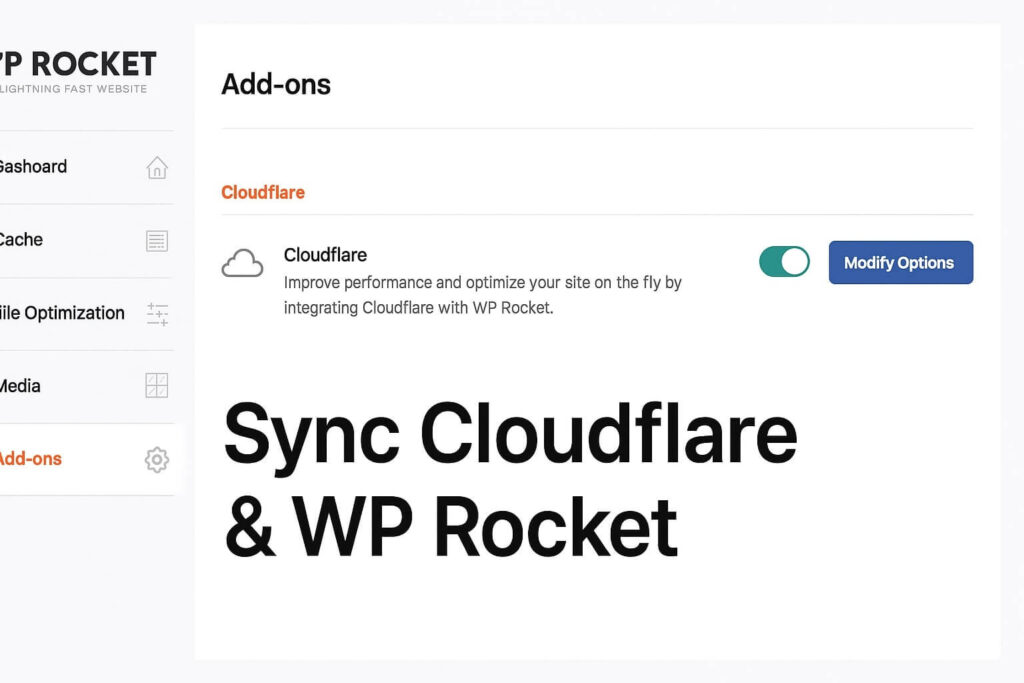
To prevent this from happening again, you should connect WP Rocket to Cloudflare so they talk to each other.
-
Go to Settings > WP Rocket.
-
Click on the Add-ons tab.
-
Toggle the Cloudflare add-on to ON.
-
Click Modify Options.
-
Enter your Cloudflare Global API Key, Email, and Zone ID.
-
Toggle “Optimal Settings” to On.
By doing this, whenever you clear WP Rocket, it automatically clears Cloudflare, providing a permanent solution.
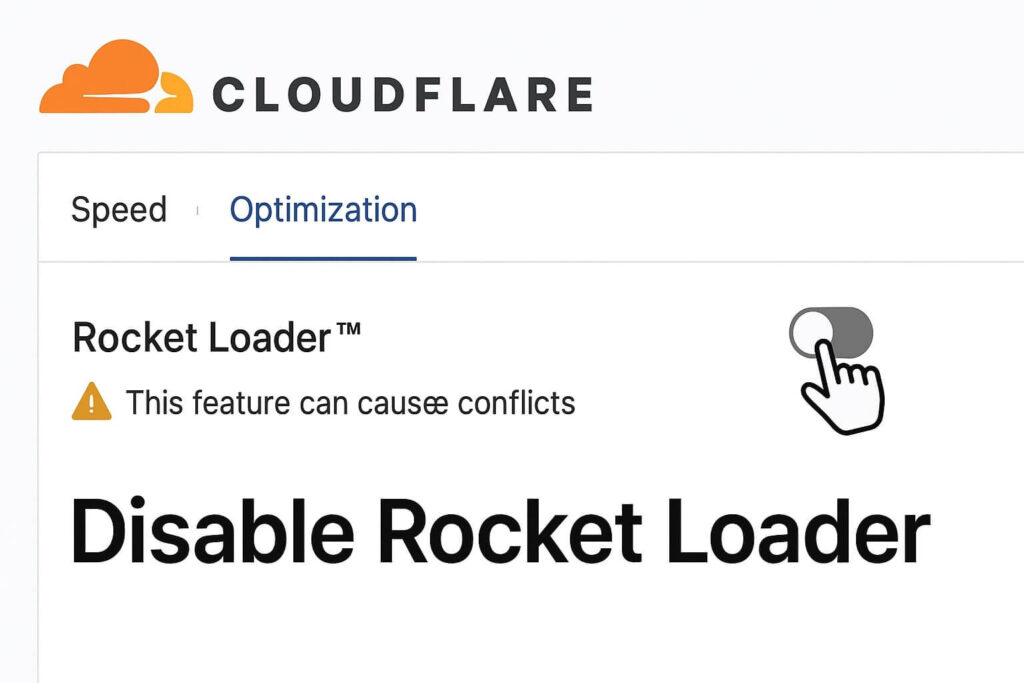
d 2: Disable Rocket Loader for WP Rocket Layout Fix
If synchronizing caches didn’t work, the issue is likely Rocket Loader. This is a Cloudflare feature that asynchronously loads JavaScript. While it sounds good, it is notoriously incompatible with WP Rocket’s JS optimization features.
Disabling this feature is a critical wp rocket layout fix.
Step 1: Access Cloudflare Speed Settings
Log in to your Cloudflare dashboard and select your domain. Click on the Speed tab, then select Optimization.
Step 2: Locate Rocket Loader
Scroll down until you find the “Rocket Loader” section.
Step 3: Switch to Off
Toggle the switch to Off (Grey).
Step 4: Clear Cache and Test
After disabling it, purge the Cloudflare cache again. Go back to your website and reload.
Why this works: WP Rocket has its own “Defer JS” and “Delay JS” features which are more sophisticated for WordPress sites. Running Rocket Loader on top of them causes scripts to break or load in the wrong order, destroying the layout.
Method 3: Adjust CSS Minification for WP Rocket Layout Fix
Sometimes, the “Combine CSS” or “Minify CSS” feature in WP Rocket is too aggressive for your specific theme setup. If a CSS file contains a syntax error, minifying it can break the entire file.
Troubleshooting your file optimization settings is a standard wp rocket layout fix.
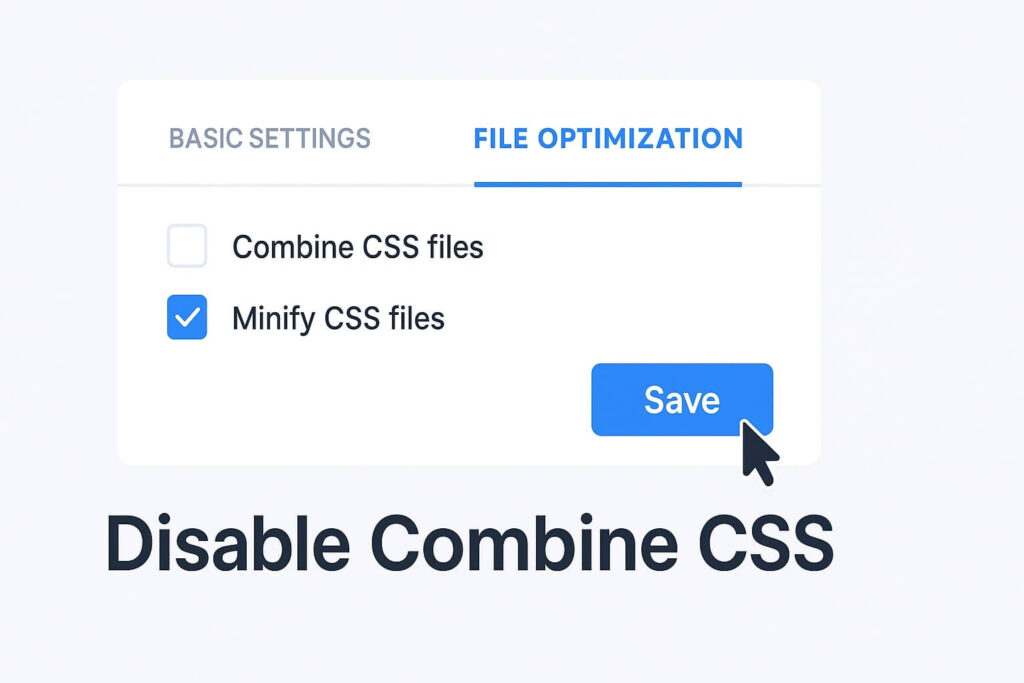
Step 1: Go to File Optimization
Navigate to Settings > WP Rocket > File Optimization.
Step 2: Disable Combine CSS
Look for “Combine CSS files”.
-
Action: Uncheck this box.
-
Why: HTTP/2 (which Cloudflare uses) handles multiple small files better than one giant file. Combining files often breaks the design without providing a speed benefit.
Step 3: Disable Optimize CSS Delivery
Look for “Optimize CSS delivery” (Remove Unused CSS).
-
Action: Temporarily uncheck this.
-
Why: This feature generates “Critical CSS.” If the generation process fails or is blocked by Cloudflare firewall rules, your site will load without styles.
Step 4: Save and Regenerate
Click Save Changes. If the design returns to normal, you know the issue was the CSS processing. You can try re-enabling “Minify CSS” alone, but keep “Combine” off.
Method 4: Fix Mixed Content as a WP Rocket Layout Fix
Sometimes, the broken design isn’t a file error; it is a security block. If your site is loading over HTTPS but your CSS files are trying to load over HTTP, the browser will block them. This results in a text-only page.
Using Cloudflare’s security settings is an excellent wp rocket layout fix for this scenario.
Step 1: Access SSL/TLS in Cloudflare
Go to your Cloudflare dashboard and click the SSL/TLS icon.
Step 2: Check SSL Mode
Ensure your encryption mode is set to “Full” or “Full (Strict)”.
-
Warning: Do not use “Flexible” if you have an SSL certificate on your host. This causes redirect loops and broken assets.
Step 3: Always Use HTTPS
Go to the Edge Certificates tab. Toggle “Always Use HTTPS” to On.
Step 4: Automatic HTTPS Rewrites
Scroll down to “Automatic HTTPS Rewrites” and toggle it On. This feature fixes “mixed content” errors by dynamically changing “http” links to “https” for images and CSS files.
[Image: cloudflare-ssl-settings-fix.jpg] Alt Text: Configuring Cloudflare SSL settings to apply a wp rocket layout fix.
Method 5: Regenerate Critical CSS for WP Rocket Layout Fix
If you are using the “Remove Unused CSS” feature in WP Rocket, the plugin generates a specific file called “Critical CSS” to load your page content instantly. If this file is corrupted or outdated (e.g., after a theme update), your pages will look broken initially.
Regenerating this file is a mandatory wp rocket layout fix.
Step 1: Clear Used CSS
-
Go to Settings > WP Rocket.
-
Click on File Optimization.
-
Scroll to the CSS section.
-
If “Remove Unused CSS” is active, you will see a button saying “Clear Used CSS”. Click it.
Step 2: Wait for Generation
WP Rocket will start a background process to scan your site and rebuild the CSS. This might take a few minutes.
Step 3: Verify the Layout
Visit your site in an Incognito window. If the layout is fixed, the issue was simply stale critical CSS data.
Tip: If you frequently update your design (e.g., using Elementor or Divi), you should clear this specific cache every time you publish major design changes.
Conclusion on the WP Rocket Layout Fix
A broken layout looks catastrophic, but it is rarely a sign of permanent damage. It is usually a conflict between two optimization giants trying to do the same job at the same time.
By synchronizing your caches, disabling Rocket Loader, and managing your CSS minification carefully, you can enjoy the speed of WP Rocket and the security of Cloudflare without the graphical glitches.
Summary of Fixes:
-
Sync: Connect the WP Rocket Cloudflare Add-on.
-
Rocket Loader: Disable this in Cloudflare immediately.
-
CSS: Disable “Combine CSS” in WP Rocket.
-
SSL: Enable “Automatic HTTPS Rewrites” in Cloudflare.
-
Critical CSS: Regenerate Used CSS data.
Still Stuck? If you have tried all 5 methods and still see a broken site, you might have a deeper theme incompatibility or a server-level firewall blocking the CSS generation. 👉 Contact Us Here for a professional audit, or Order our Emergency Fix Service to get your website design restored today.









