


You are experiencing the Bluehost WordPress admin slow issue if logging into your dashboard feels like waiting for dial-up internet. You click “Posts,” go grab a coffee, come back, and the page is still loading. The frontend of your site might be loading fine for visitors, but the backend—where you do your work—is agonizingly sluggish.
This hidden performance drain kills productivity. Simple tasks like updating a plugin or saving a draft turn into hour-long ordeals.
Bluehost is a popular hosting choice, but its shared hosting environment often imposes strict resource limits. When your WordPress admin panel demands more resources than allocated, the server throttles your connection, resulting in that dreaded spinning loading icon.
🚀 Need this fixed instantly? If you are uncomfortable editing PHP files or database tables, Contact Us Here to order our Speed Optimization Service. We will resolve the Bluehost WordPress admin slow issue and optimize your backend within one hour.
In this extensive guide, we will dissect the root causes of this lag. Furthermore, we will provide you with 5 proven, step-by-step methods to speed up your dashboard specifically for the Bluehost environment.
Why Is the Bluehost WordPress Admin Slow?
To fix the issue, you must understand the bottleneck. Your admin dashboard is dynamic; it cannot be cached the same way your frontend pages are. Every time you click a button, WordPress queries the database and processes PHP scripts in real-time.
The Bluehost WordPress admin slow phenomenon typically occurs when these real-time requests hit a traffic jam. You can read more about how WordPress manages server resources in the official WordPress.org Documentation.
Common Triggers on Bluehost
-
Heartbeat API Overload: WordPress constantly “pulses” the server to auto-save drafts and check for notifications. On shared hosting, this uses up all your CPU allowance.
-
Low PHP Memory Limit: Bluehost defaults to a conservative memory limit (often 256MB), which isn’t enough for heavy dashboards like WooCommerce or Elementor.
-
Bloated Database: Thousands of “transients” (temporary data) clog the database, making queries slow.
-
Endurance Cache: Bluehost’s built-in caching system sometimes conflicts with other plugins in the backend.
We will address these issues systematically, starting with the most critical server-side adjustment.
Method 1: Increase PHP Memory to Fix Bluehost WordPress Admin Slow
In approximately 80% of cases, the Bluehost WordPress admin slow issue is caused by memory exhaustion. Your dashboard plugins are trying to load, but the “desk space” (RAM) allotted to them is too small.
You need to manually tell Bluehost to give your site more breathing room. You can check standard PHP requirements on PHP.net.
Step 1: Access Bluehost File Manager
-
Log in to your Bluehost Portal.
-
Navigate to Advanced > File Manager.
-
Open the
public_htmlfolder.
Step 2: Edit wp-config.php
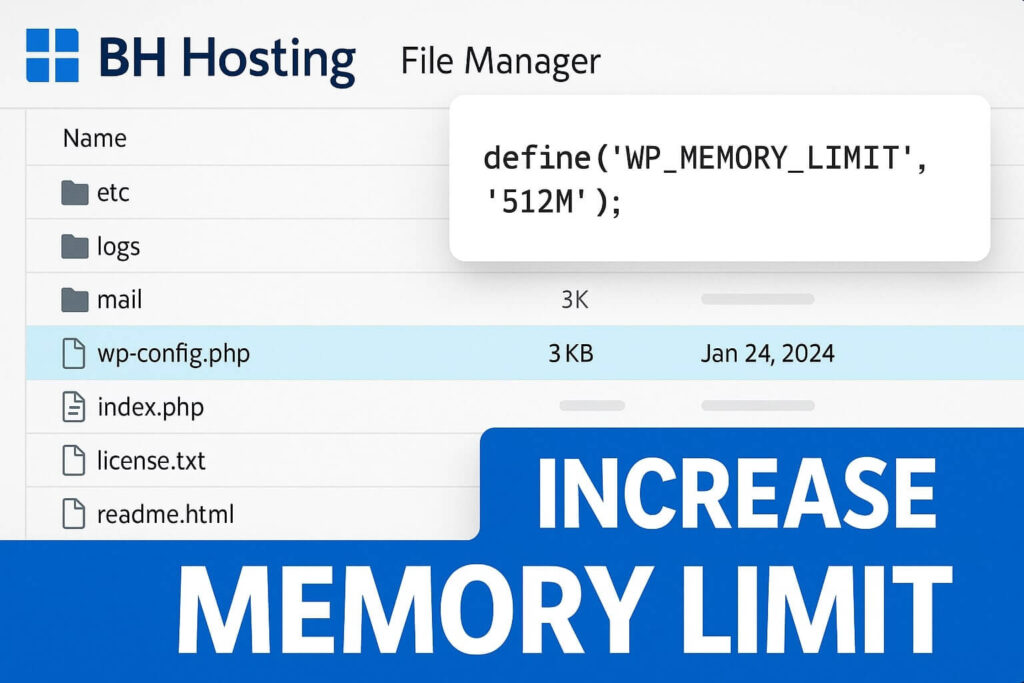
Locate the wp-config.php file. Right-click it and select Edit.
Step 3: Add the Memory Rule
Scroll down until you see the line: /* That's all, stop editing! Happy publishing. */. Paste the following code just before that line:
define( 'WP_MEMORY_LIMIT', '512M' );
define( 'WP_MAX_MEMORY_LIMIT', '512M' );
Step 4: Save Changes
Click Save Changes. This creates a higher ceiling for your admin processes, often eliminating the lag immediately.
Method 2: Control Heartbeat API for Bluehost WordPress Admin Slow Issues
The WordPress Heartbeat API is a feature that allows your browser to communicate with the server in real-time. It handles auto-saves, lock alerts (when someone else is editing a post), and real-time dashboard notifications.
However, on shared Bluehost plans, this “pulse” happens too frequently (every 15-60 seconds). If you have multiple tabs open, it can overwhelm your CPU, causing the Bluehost WordPress admin slow experience.
Step 1: Install WP-Optimize
The easiest way to fix this is using a plugin rather than code. Install and activate WP-Optimize (or WP Rocket if you have it).
Step 2: Navigate to Minify Settings
Go to WP-Optimize > Minify (or equivalent settings). Look for “Heartbeat” or “Cache Preload” settings depending on your version.
Step 3: Reduce Frequency
Ideally, you do not want to disable it completely (or auto-save stops working). Instead:
-
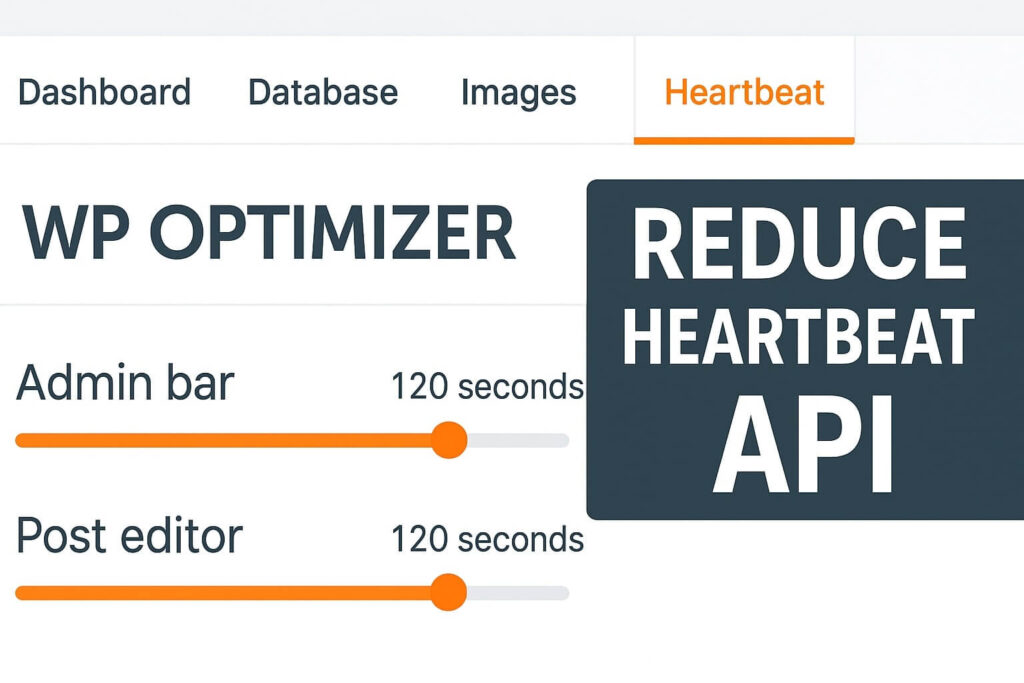
Frontend: Reduce to 60 seconds (or disable).
-
Backend (Admin): Reduce to 120 seconds.
-
Post Editor: Reduce to 120 seconds.
By slowing the heartbeat down, you free up massive amounts of CPU power for your actual clicks.
Method 3: Clean Database Transients for Bluehost WordPress Admin Slow Fix
Transients are temporary options stored in your database. They are supposed to expire and delete themselves, but often they get stuck. We have seen sites with millions of expired transients.
When you load your dashboard, WordPress scans this table. If it has to scan millions of junk rows, the Bluehost WordPress admin slow issue becomes unbearable.
Step 1: Install a Cleaner Plugin
We recommend Advanced Database Cleaner or using the database tools inside WP Rocket.
Step 2: Scan for Transients
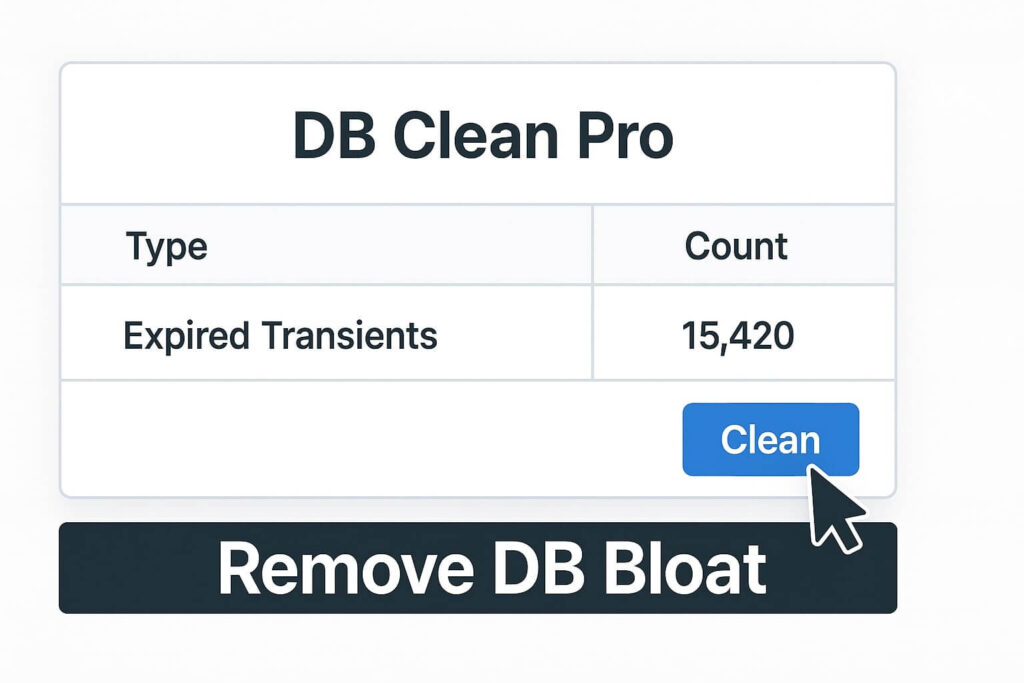
Run a scan for “Expired Transients.”
Step 3: Clean and Optimize
Click “Clean.” After removing the junk, run an “Optimize Tables” command. This defragments your database, making it easier for the Bluehost server to read data quickly.
Warning: Always backup your site via UpdraftPlus before performing database operations.
Method 4: Manage Bluehost Caching to Fix Bluehost WordPress Admin Slow
Bluehost automatically installs a “Must-Use” plugin called Endurance Page Cache on most WordPress installations. It sets up 3 levels of caching. While good for the frontend, it can sometimes aggressively cache backend assets or conflict with plugins like W3 Total Cache.
Addressing this conflict is a key Bluehost WordPress admin slow fix.
Step 1: Check Active Plugins
Go to Plugins > Installed Plugins. Look for “Endurance Page Cache.”
Step 2: Adjust Settings
If the site is slow, try changing the caching level in the Settings > General tab (Bluehost sometimes adds a menu here) to Level 0 (Off) temporarily to test.
Step 3: Disable if Using Alternatives
If you are using WP Rocket or SiteGround Optimizer, you should disable the Bluehost internal caching to prevent conflicts.
-
Go to the Bluehost Plugin menu in your dashboard.
-
Look for “Performance” or “Caching.”
-
Clear Cache and turn it Off.
Method 5: Use Query Monitor to Find the Culprit
If the previous methods failed, you likely have a specific plugin that is “leaking” resources or running heavy queries on every page load. You need to identify the specific culprit causing the Bluehost WordPress admin slow situation.
Step 1: Install Query Monitor
Install the free plugin Query Monitor.
Step 2: Analyze the Top Bar
Once activated, a menu bar with numbers appears at the top of your screen. Load a slow admin page.
-
Look at the time in seconds (e.g., 5.4s).
-
Hover over it to see “Slow Queries.”
Step 3: Identify High Impact Plugins
Click on Queries by Component. This list shows exactly which plugin is taking the longest to load.
-
Example: If “WooCommerce” takes 4 seconds, you might have too many orders loading in the dashboard widget.
-
Action: Disable the specific dashboard widget or replace the heavy plugin.
Conclusion on the Bluehost WordPress Admin Slow Issue
A slow backend is not something you have to live with. It is usually a sign of resource mismanagement rather than a server failure. By increasing your PHP memory, taming the Heartbeat API, and cleaning your database, you can make your Bluehost dashboard snappy again.
Summary of Fixes:
-
Memory: Edit
wp-config.phpto 512M. -
Heartbeat: Reduce frequency to 120s.
-
Database: Delete expired transients.
-
Caching: Disable conflicting Bluehost caches.
-
Audit: Use Query Monitor to find heavy plugins.
Still Seeing the Spinner? If you have tried all 5 methods and still face the Bluehost WordPress admin slow issue, you might have outgrown your shared hosting plan. Check Out Our Service Price Plan for a professional server migration, or Contact Us today to let our experts debug your site instantly.









