Destination Folder Already Exists WordPress Error: 2 Fixes (2025)

Content Overview

WordPress screen showing the installation failed destination folder already exists error.

Have you ever tried to install a plugin or theme only to see the destination folder already exists error message? This usually happens when you try to update a plugin or reinstall a theme that you thought was deleted.

The error looks scary: “Installation failed…” But don’t worry—it simply means WordPress is confused because a leftover folder from a previous installation is blocking the new one.

🚀 Need this fixed instantly? If you don’t want to touch server files, Click here to order our Quick Fix Service and we will resolve this installation conflict for you within an hour!

In this guide, we will show you 2 simple ways to solve this problem so you can finish your setup.
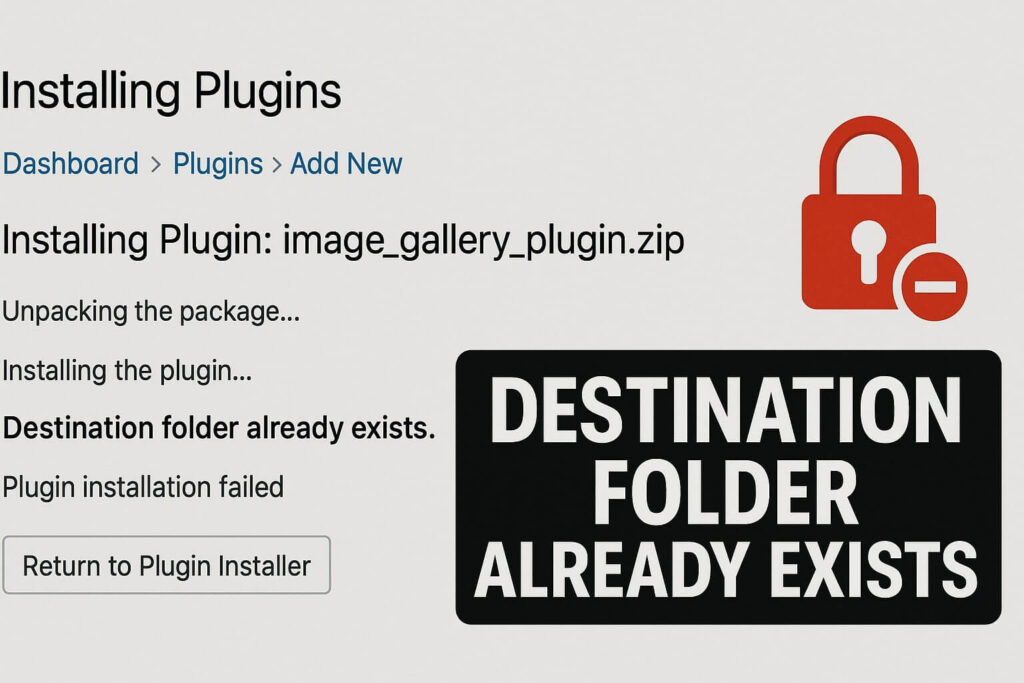
WordPress showing “Destination folder already exists” during plugin install.

Why the “Destination Folder Already Exists” Error Happens

This specific error occurs when WordPress tries to create a directory for a plugin (e.g., /wp-content/plugins/elementor/), but it finds that a folder with that exact name is already there.

This common conflict happens because:

  1. A previous installation failed: A past install was interrupted, leaving an empty or half-full folder behind.

  2. Incomplete Deletion: You deleted a plugin, but the server didn’t remove the directory completely.

  3. Manual Uploads: You previously uploaded files via FTP and forgot about them.

Method 1: Fix “Destination Folder Already Exists” via Dashboard

In modern versions of WordPress (5.5 and later), fixing this folder conflict is actually built right into the installer.

When you see the error screen, do not panic. Look closely at the bottom of the message.
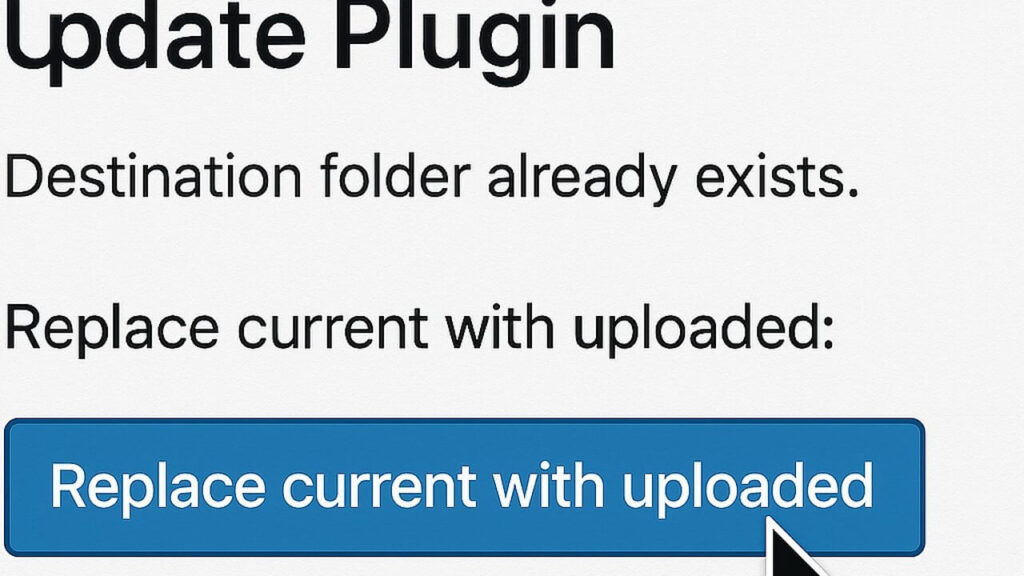
WordPress button to fix destination folder already exists by replacing the current file.

  1. WordPress will detect the issue and show a button that says “Replace current with uploaded”.

  2. Simply click that button.

  3. WordPress will automatically delete the old folder and install the new version for you.

However, if you are on an older version of WordPress, or if the button doesn’t appear, you must use Method 2.

Method 2: Delete the Folder to Fix “Destination Folder Already Exists”

If the automatic button isn’t available, you need to manually remove the blockage causing the installation failure. You can do this using an FTP client like FileZilla or your Hosting File Manager.

Step 1: Connect to Your Site

Open your File Manager or connect via FTP using your hosting credentials.

Step 2: Navigate to the Problem Area

  • If you are installing a plugin, go to: public_html/wp-content/plugins/

  • If you are installing a theme, go to: public_html/wp-content/themes/

Step 3: Find and Delete the Folder

Look for the directory name mentioned in the error message.

  • Example: If the error was about “Elementor,” look for the folder named elementor.

  • Right-click that folder and select Delete.
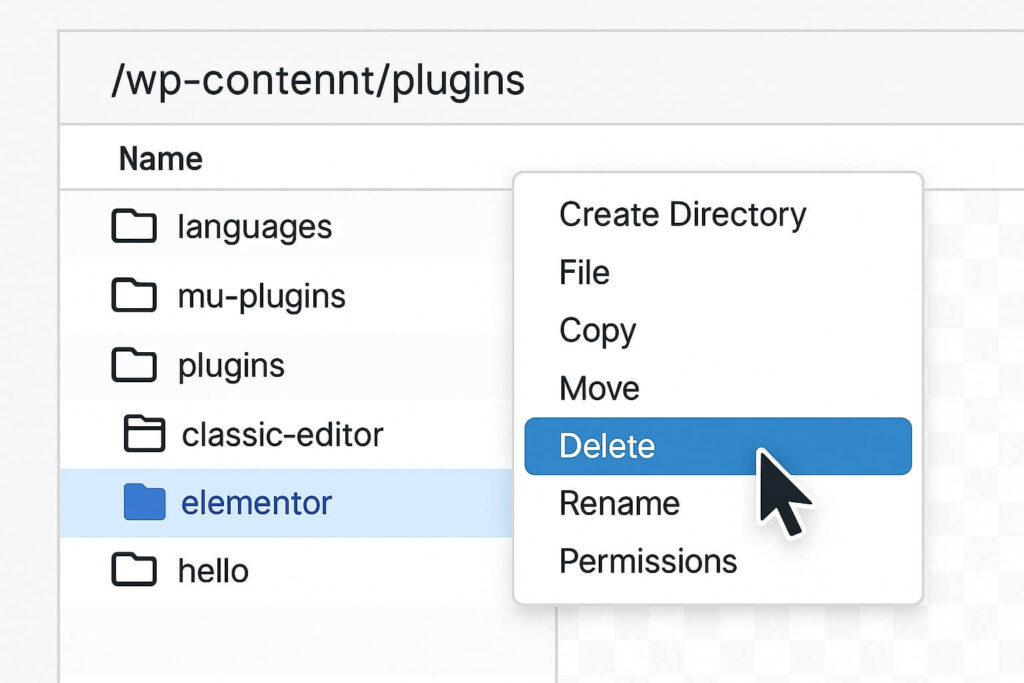
Deleting a plugin folder via FTP to resolve destination folder already exists error.

Step 4: Retry Installation

Once the folder is gone, go back to your WordPress dashboard. Try installing the plugin again. Since you removed the blockage, the warning message will not appear, and the installation will succeed.

Conclusion on the “Destination Folder Already Exists” Error

This warning is just WordPress trying to protect you from overwriting files accidentally. By using the “Replace with current” button or manually deleting the old folder, you can clear the path for your new plugin in seconds.

Still Facing Issues? If you deleted the folder but the error persists, you might need a deeper server check. 👉 Contact Us Here for a professional consultation, or check out our WordPress Speed Optimization Services to ensure your site runs smoothly after the fix.

Share:

Content Overview

Did this article help you?

If you found this guide useful, you can support our work by buying me a coffee ☕

Still Need Help With Your Website?

Send Us A Message

Related Posts

A laptop screen displaying the HostGator 403 forbidden error message.
Blog
Site Success Partner

HostGator 403 Forbidden Error Fix: 5 Proven Steps (2025)

You are clicking on your website link, expecting to see your homepage. However, instead of your beautiful design, you are greeted by the dreaded HostGator 403 forbidden error screen. The message usually reads: “403 Forbidden – You don’t have permission to access / on this server.” This error stops your

Read More »
Split screen showing the live site vs the environment used to create staging site Hostinger.
Blog
Site Success Partner

Create Staging Site Hostinger: The Step-by-Step Guide (2025)

You need to update a critical plugin or redesign your homepage. However, you are terrified of pressing “Update” and watching your live website crash. Consequently, this is why you need to learn how to create staging site Hostinger environments. A staging site is a clone of your live website. Specifically,

Read More »
Browser screen displaying the error_too_many_redirects WordPress Cloudflare loop message.
Blog
Site Success Partner

Error_too_many_redirects WordPress Cloudflare Fix (2025)

Facing the error_too_many_redirects WordPress Cloudflare loop is a nightmare that can take your entire website offline instantly. You activated Cloudflare to make your site faster, but instead, your browser is displaying a frustrating message: “ERR_TOO_MANY_REDIRECTS”. This is one of the most panic-inducing errors for website owners because it locks you

Read More »
A split screen showing a slow WordPress site versus a fast one optimized with w3 total cache bluehost settings.
Blog
Site Success Partner

Best W3 Total Cache Bluehost Settings: The 2025 Guide

Finding the perfect w3 total cache Bluehost configuration is the single most effective way to transform a sluggish shared hosting site into a high-performance machine. You chose Bluehost for its affordability and WordPress integration, but out of the box, shared servers can struggle under heavy traffic. You likely installed W3

Read More »
Split screen showing cPanel MultiPHP INI Editor and File Manager answering where is php.ini in Namecheap.
Blog
Site Success Partner

Where Is php.ini in Namecheap? Access & Edit Guide (2025)

If you are trying to increase your upload limit or boost your memory cap, you are likely asking: where is php.ini in Namecheap shared hosting? You looked in your File Manager, searched your root folder, and came up empty-handed. This is one of the most common frustrations for Namecheap users.

Read More »
Cloudflare error screen showing the Cloudflare error 521 fix diagram.
Blog
Site Success Partner

Cloudflare Error 521 Fix: 5 Web Server Solutions (2025)

You are searching for a Cloudflare error 521 fix because your website has suddenly vanished behind a Cloudflare branding screen. Instead of your homepage, you see a diagram showing a working browser, a working Cloudflare cloud, but a big red “X” connecting to your Host (Web Server). This specific error

Read More »

Calculators

© 2020–2025 Site Success Partner. All rights reserved.








