


Encountering the divi visual builder timeout error is arguably the most frustrating experience for a Divi user. You are ready to design a page, you click “Enable Visual Builder,” and instead of your layout, you see the spinning multi-colored circle of death. Sometimes, the page partially loads but the modules are unresponsive; other times, it just spins forever on a white screen.
This issue halts your workflow instantly. Unlike a frontend crash that visitors see, this error locks you out of your own workspace.
The good news involves the nature of the problem. Effectively, the builder is not broken. Usually, the server simply stopped talking to the builder because it ran out of resources or hit a conflict.
🚀 Need this fixed instantly? If you are uncomfortable editing server files or debugging plugin conflicts, Click here to order our Quick Fix Service. We will resolve the divi visual builder timeout error and optimize your editor speed within one hour.
In this extensive guide, we will break down the technical reasons behind this freeze. Furthermore, we will provide you with 5 proven, step-by-step methods to unblock your editor and get back to designing.
Why the Divi Visual Builder Timeout Error Happens
To fix the issue, you must understand what Divi needs to run. The Visual Builder is a heavy, resource-intensive application that runs inside your browser while communicating constantly with your server.
When you see the divi visual builder timeout error, it usually means the communication line was cut. The browser asked for data, but the server didn’t respond in time.
Common Triggers
Resource Exhaustion: This is the #1 cause. Your server ran out of memory (RAM) while trying to load the builder scripts.
Plugin Conflicts: Another plugin is fighting with Divi for control of the page resources.
Caching Issues: Your browser or server is holding onto an old, broken version of a script.
Database Bloat: Divi stores a lot of revisions. If your database is huge, the builder times out trying to read it.
We will address these issues systematically, starting with the most effective server-side fixes.
Method 1: Increase Resources to Fix Divi Visual Builder Timeout Error
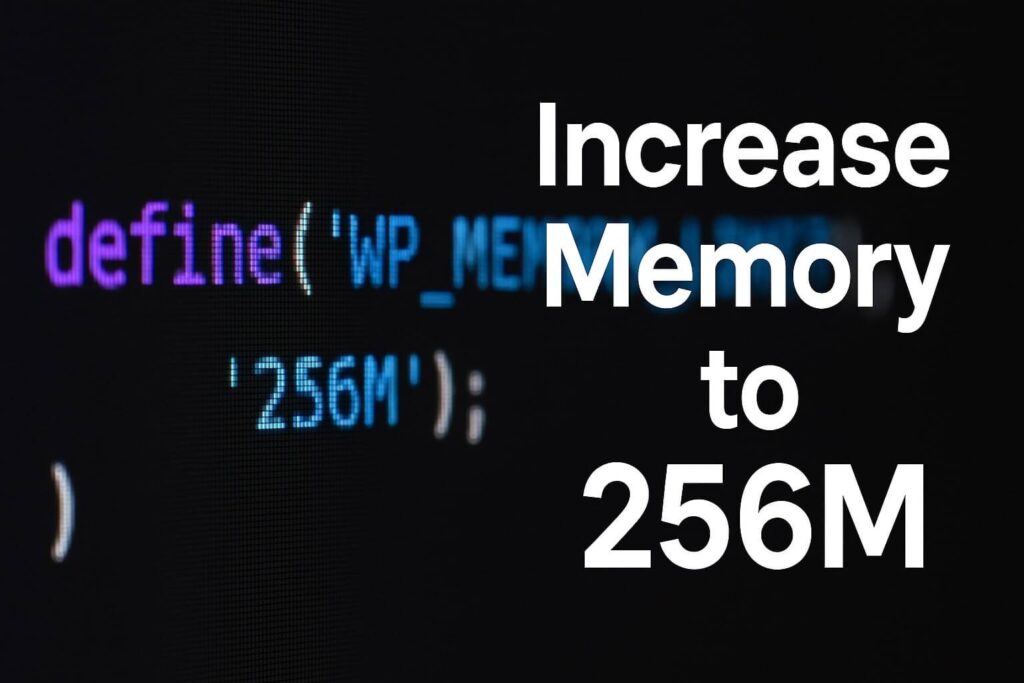
In approximately 80% of cases, the divi visual builder timeout error happens because your server limits are too low. Divi is powerful, and power requires resources. If your PHP memory limit is set to the WordPress default (40MB or 64MB), the builder will crash immediately.
We recommend increasing the limit to 256MB or 512MB. You can read more about Divi’s system requirements on the official Elegant Themes documentation.
Option A: Edit wp-config.php (Recommended)
You can define the memory limit manually in your configuration file.
First, connect to your server via an FTP client like FileZilla or your File Manager.
Next, locate the
wp-config.phpfile in thepublic_htmlfolder.Then, edit the file.
Finally, paste this code just before the line that says “That’s all, stop editing”:
define( 'WP_MEMORY_LIMIT', '256M' );
define( 'WP_MAX_MEMORY_LIMIT', '512M' );
Option B: Edit .htaccess
If wp-config.php doesn’t work, try the .htaccess file.
Locate the
.htaccessfile in your root directory.Edit the file.
Paste this code at the bottom:
php_value memory_limit 512M
php_value max_execution_time 300
Option C: Update PHP.ini
For users with access to the php.ini file:
Open your
php.inifile.Find the line
memory_limit.Change the value to
512M.Find
max_execution_timeand change it to300(seconds).
After applying one of these fixes, clear your browser cache and reload the builder. The divi visual builder timeout error should vanish.
Method 2: Clear Caches to Resolve Divi Visual Builder Timeout Error
Caching creates copies of your website to load it faster. However, if your cache holds an outdated version of the Divi builder scripts, it will cause a conflict with the live version you are trying to load. This conflict often results in the divi visual builder timeout error.
You need to clear three different types of cache.
Step 1: Clear Browser Cache
Your Chrome or Firefox browser stores files locally.
Chrome: Press
Ctrl + Shift + Delete. Select “Cached images and files” and click “Clear data.”
Step 2: Clear Divi Internal Cache
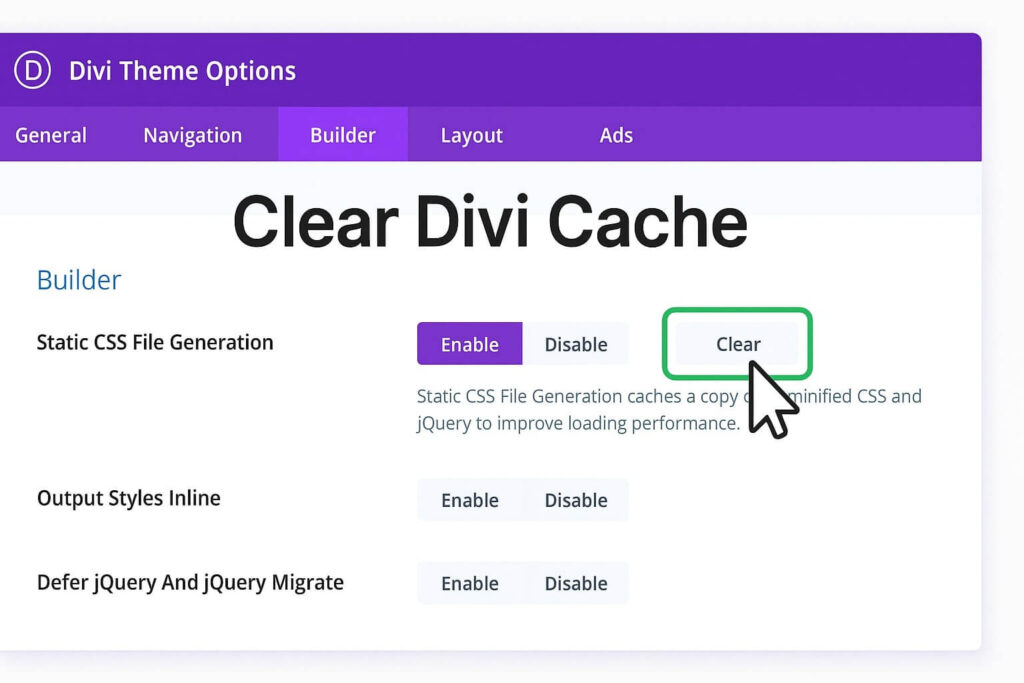
Divi has its own static CSS file generation system.
Go to Divi > Theme Options.
Click on the Builder tab.
Click the Advanced tab.
Find “Static CSS File Generation.”
Click the Clear button.
Step 3: Clear Server/Plugin Cache
If you use WP Rocket, SG Optimizer, or Cloudflare:
Click “Purge All” or “Clear Cache” in your WordPress admin bar.
After clearing all three levels, try to load the builder. Usually, a fresh set of scripts resolves the infinite loading loop.
Method 3: Enable Safe Mode for Divi Visual Builder Timeout Error
Sometimes, the server is fine, but a plugin is breaking the builder. Divi includes a built-in tool called Safe Mode designed specifically to diagnose the divi visual builder timeout error.
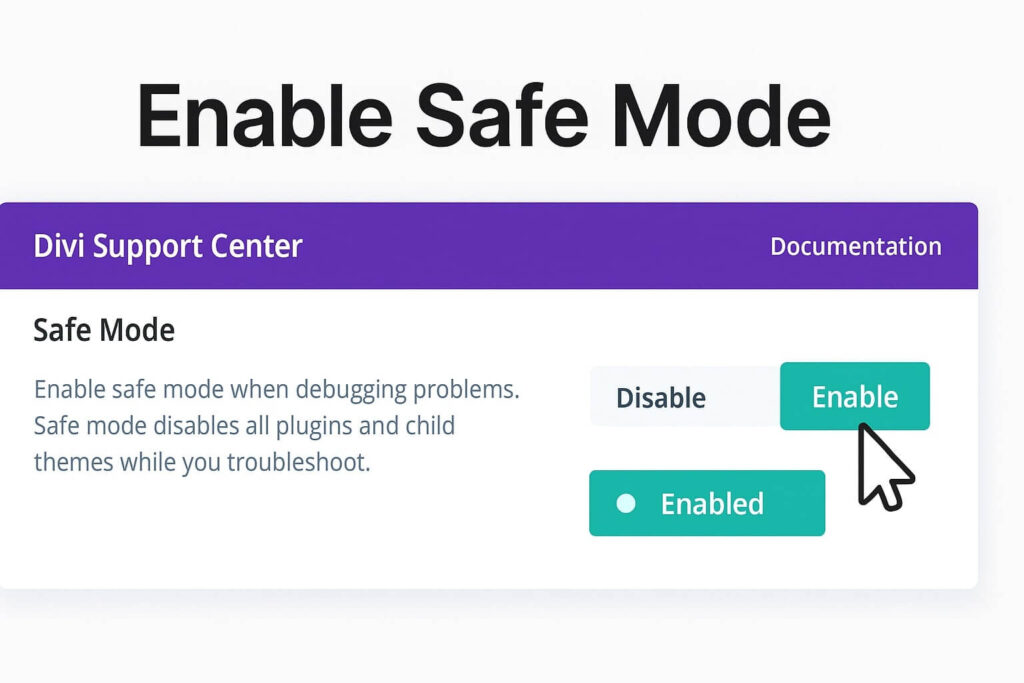
Safe Mode loads the builder while temporarily disabling all other plugins, custom code, and child themes.
Step 1: Enable Safe Mode
Navigate to Divi > Support Center.
Locate the “Safe Mode” toggle.
Switch it to Enable.
Step 2: Test the Builder
Go back to your page and enable the Visual Builder.
If it loads: A plugin or child theme was causing the crash.
If it fails: The issue is server-side (Resources or Database).
Step 3: Identify the Culprit
If Safe Mode worked, you must find the bad plugin.
Disable Safe Mode.
Go to Plugins > Installed Plugins.
Deactivate all plugins except Divi.
Reactivate them one by one, checking the builder after each activation.
When the builder freezes again, the last plugin you activated is the cause.
Method 4: Adjust Divi Settings to Fix Divi Visual Builder Timeout Error
Modern versions of Divi come with performance features designed to speed up the frontend. However, some of these features (like “Defer jQuery” or “Dynamic CSS”) can cause the divi visual builder timeout error on certain server configurations.
Disabling these features temporarily can unblock the editor.
Step 1: Disable Performance Options
Go to Divi > Theme Options.
Click on the General tab -> Performance.
Disable the following options one by one:
Dynamic CSS
Defer jQuery And jQuery Migrate
Enqueue jQuery Compatibility Script
Step 2: Save and Test
Click Save Changes and retry the builder. If it loads, you can try re-enabling them later, but keep “Defer jQuery” disabled if it causes conflicts.
Method 5: Check Database Issues causing Divi Visual Builder Timeout Error
If your website is old or large, your database might be bloated with thousands of post revisions or “transients.” This makes the database slow to respond. When Divi requests data, the database takes too long, triggering the divi visual builder timeout error.
Step 1: Install an Optimization Plugin
We recommend WP-Optimize or Advanced Database Cleaner.
Step 2: Clean the Database
Run the cleaner to remove:
Post Revisions (Divi creates a lot of these).
Auto Drafts.
Expired Transients.
Spam Comments.
Step 3: Repair Tables
Most optimization plugins have a “Repair Tables” feature. Run this to fix any corruption in the wp_options table, which is often a source of builder timeouts.
Conclusion on the Divi Visual Builder Timeout Error
The spinning wheel is a workflow killer, but it is rarely fatal. It is usually a sign that Divi needs more memory or that a cache conflict is blocking the script.
By systematically increasing memory, clearing caches, and using Safe Mode, you can resolve the divi visual builder timeout error quickly.
Summary of Fixes:
Resources: Increase PHP memory to 256MB+.
Cache: Clear Browser, Divi, and Server cache.
Safe Mode: Use the Support Center to find conflicts.
Settings: Disable “Defer jQuery” in performance options.
Database: Clean up revisions and transients.
Still Stuck? If you have tried all 5 methods and still cannot edit your site, you might have a deeper hosting restriction. 👉 Contact Us Here for a professional audit, or visit our WordPress Service Page to get your Divi builder working perfectly today.









